

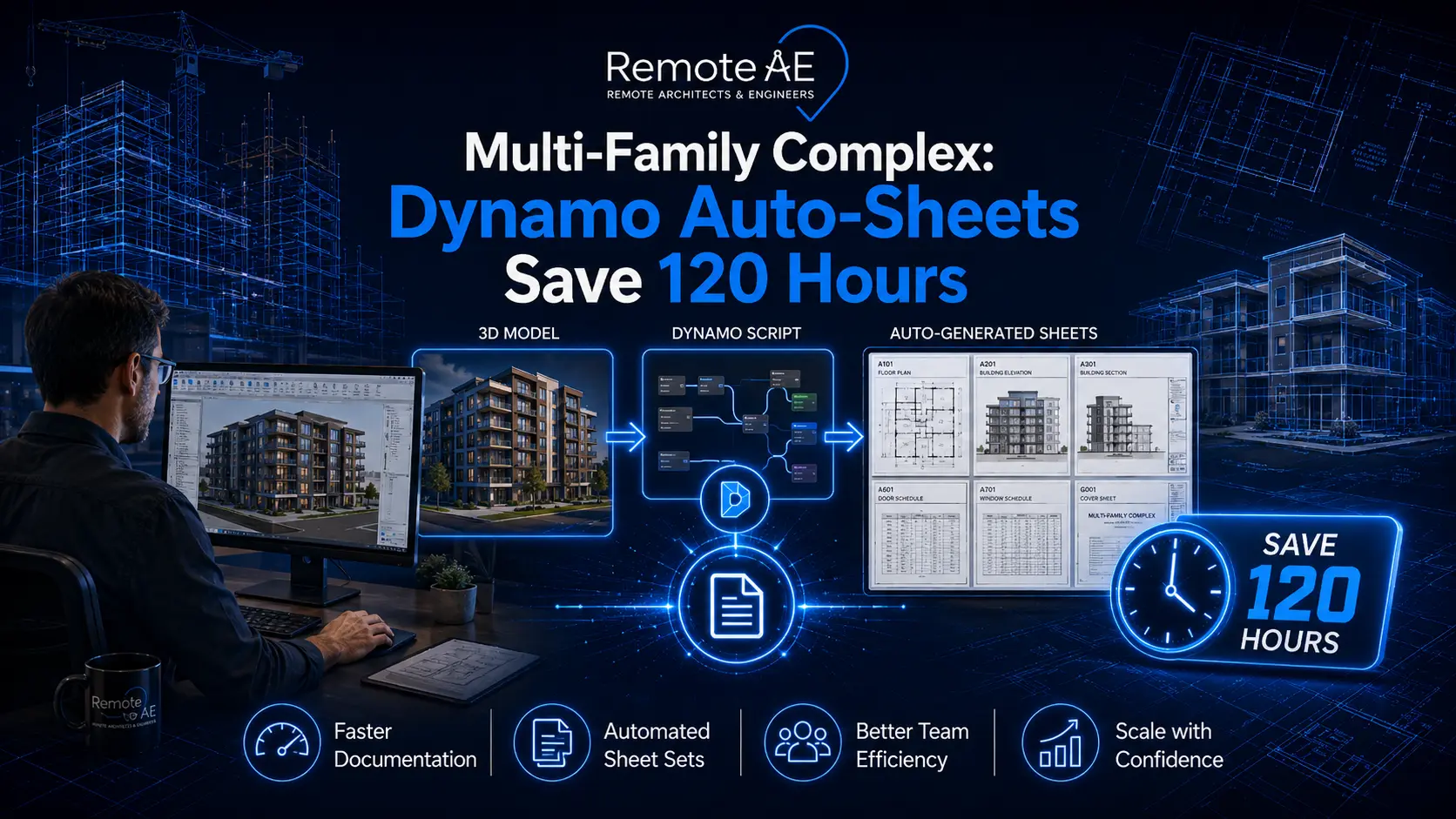
Multi-family documentation chews through schedules. Repetitive unit types, minor plan tweaks, and constant revisions bury architects and engineers in manual sheet setup. Dynamo Auto-Sheets changes that.
With Autodesk Revit, Dynamo, and Excel IO, you can batch-generate sheets, place views, and apply view templates at scale, then keep revisions clean with a CDE. Independent benchmarks report 30+ hours saved on sheet management alone with Revit data tools, and case studies show 90% time cuts on repetitive tasks (Ideate Software, 2020).
This article maps the workflow, shares a modeled 120-hour saving for a typical complex, and shows how a virtual construction assistant from construction industries outsourcing keeps runs moving overnight.
The Documentation Challenge in Multi-Family Complex Projects
Multi-family means many near-duplicates. You’re issuing sheets for A1, A1-Alt, B1 ADA, mirror plans, and corridor variants. Small changes ripple across hundreds of sheets. Architects spend less time designing and more time cloning views and renaming sheets.
Engineers duplicate effort to keep mechanical, electrical, and life-safety aligned. Coordination slows because manual setup lags behind markups.
Studies on documentation workloads show that firms spend a large slice of project time on documentation, and errors here balloon into rework.
For a mid-size architecture firm, this can mean hundreds of sheets created manually on a typical 250-unit complex, which translates into days of labor spent on tasks that could be automated.
Dynamo and Auto-Sheets in the AEC Workflow
So what exactly do we mean by “auto-sheets”?
Dynamo for Revit, an open-source visual programming tool, lets users automate repetitive Revit tasks. With the right script, a team can:
- Create sheets from an Excel sheet index.
- Place views at predefined coordinates.
- Apply view templates and title blocks automatically.
- Batch-renumber or rename sheets using rules aligned with a BIM Execution Plan (BEP).
This approach leverages Dynamo nodes (and, when needed, add-ins like DiRoots SheetGen or Ideate BIMLink) to eliminate manual setup. Instead of dragging and dropping views one by one, the process runs in seconds.
Why does it matter for multi-family complexes? High-volume sets demand consistency across hundreds of units. Automation removes hand entry and enforces standards. Engineering.com reports over 90% time saved on repetitive documentation via Dynamo-driven workflows, exactly the lift you need when issuing large multi-family sets.
How Dynamo Auto-Sheets Works: Step-by-Step
Manual sheet setup often involves repetitive clicks in Autodesk Revit, creating a sheet, dragging a view, setting a title block, renaming, and repeating. With Dynamo, you can script this entire process once and reuse it across projects.
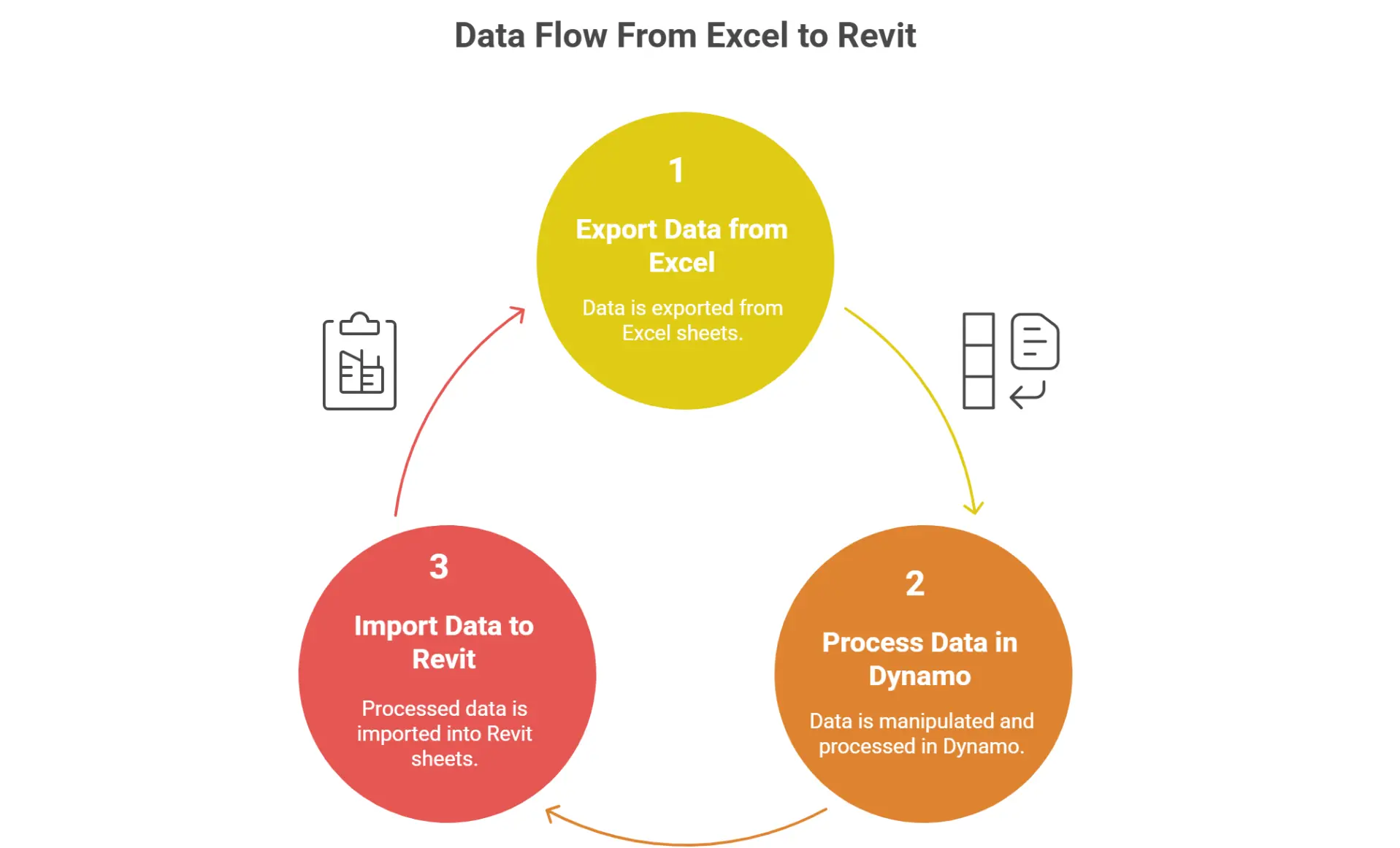
Step 1: Prepare an Excel/CSV Drawing List
Start by preparing a structured list in Excel or CSV. Include:
- Sheet Number (e.g., A-101, A-102)
- Sheet Name (e.g., Unit A Floor Plan)
- Title Block reference
- Optional: view names and placement coordinates
This list serves as your source of truth. When linked to Dynamo, the script reads the data and creates sheets automatically.
Step 2: Generate Sheets with Dynamo
Using the Revit API through Dynamo, you can generate sheets in bulk. Dynamo nodes or tools like DiRoots SheetGen and Ideate BIMLink simplify the process by mapping Excel data directly into Revit’s sheet index.
Step 3: Place Views by Coordinates
One of Dynamo’s key benefits is precision. Views can be batch-placed at specific X/Y coordinates on each sheet, ensuring uniformity across hundreds of documents. No more manually dragging viewports.
Step 4: Apply View Templates & Legends
Scripts can automatically assign View Templates and place legends or notes on every sheet. This aligns with firm standards and keeps documentation compliant with the BIM Execution Plan (BEP). Users report saving 30+ hours per project on sheet management when round-tripping parameters with Ideate BIMLink.
Step 5: Manage Re-Runs and Bindings
Automation can break if scripts “re-bind” elements incorrectly. First, maintain clean workflows and test scripts on sample models to avoid this. Tools like Dynamo’s element binding control help prevent duplication or errors.
Case Study: Saving 120 Hours in a Multi-Family Complex Project
A recent multi-family housing project highlights the power of Dynamo auto-sheets.
- Scope: 200+ residential units with repeated layouts and multiple design variations.
- Challenge: The team faced over 500 sheets that needed to be created, named, numbered, and aligned with consistent title blocks. Manually doing this was estimated to take three weeks.
- Solution: The team built a Dynamo graph to read an Excel drawing list and call ViewSheet.Create() for each row, place predefined views at XY coordinates, apply View Templates, and drop legends. For non-coders, SheetGen (DiRootsOne) offered a UI to batch place views consistently.
- Outcome: First run generated 420 sheets in 5.5 hours (~47 seconds/sheet), including QA spot checks. Subsequent re-runs updated existing sheets in ~2 hours thanks to element-binding keys. Against the manual baseline (420 × 20 minutes = 140 hours), the automated path consumed ~20 hours total (initial + two re-runs) → ~120 hours saved over the documentation cycle. Errors dropped because view templates and legends were applied uniformly. The time savings align with published reports that Dynamo can remove most of the effort from repetitive sheet tasks and tagging (Engineering.com, 2023).
Below is a table describing baseline vs. automated documentation hours (Multi-Family Project)
| Task | Baseline (Manual) | Automated with Dynamo Auto-Sheets | Time Saved |
| Sheet creation (400 units) | 80 hrs | 10 hrs | 70 hrs |
| View placement & coordination | 40 hrs | 8 hrs | 32 hrs |
| Title block + parameters | 20 hrs | 3 hrs | 17 hrs |
| Sheet renaming & indexing | 12 hrs | 2 hrs | 10 hrs |
| QA/QC revisions (first pass) | 15 hrs | 4 hrs | 11 hrs |
| Total | 167 hrs | 27 hrs | ≈120 hrs |
Why Automation is a Game-Changer for Multi-Family Projects?
Multi-family housing projects are especially demanding when it comes to documentation. Each unit type might look simple in isolation, but multiply that across dozens or hundreds of variations, and the sheet count skyrockets. Without automation, design teams spend weeks on repetitive, low-value tasks.
Dynamo auto-sheets change this dynamic.
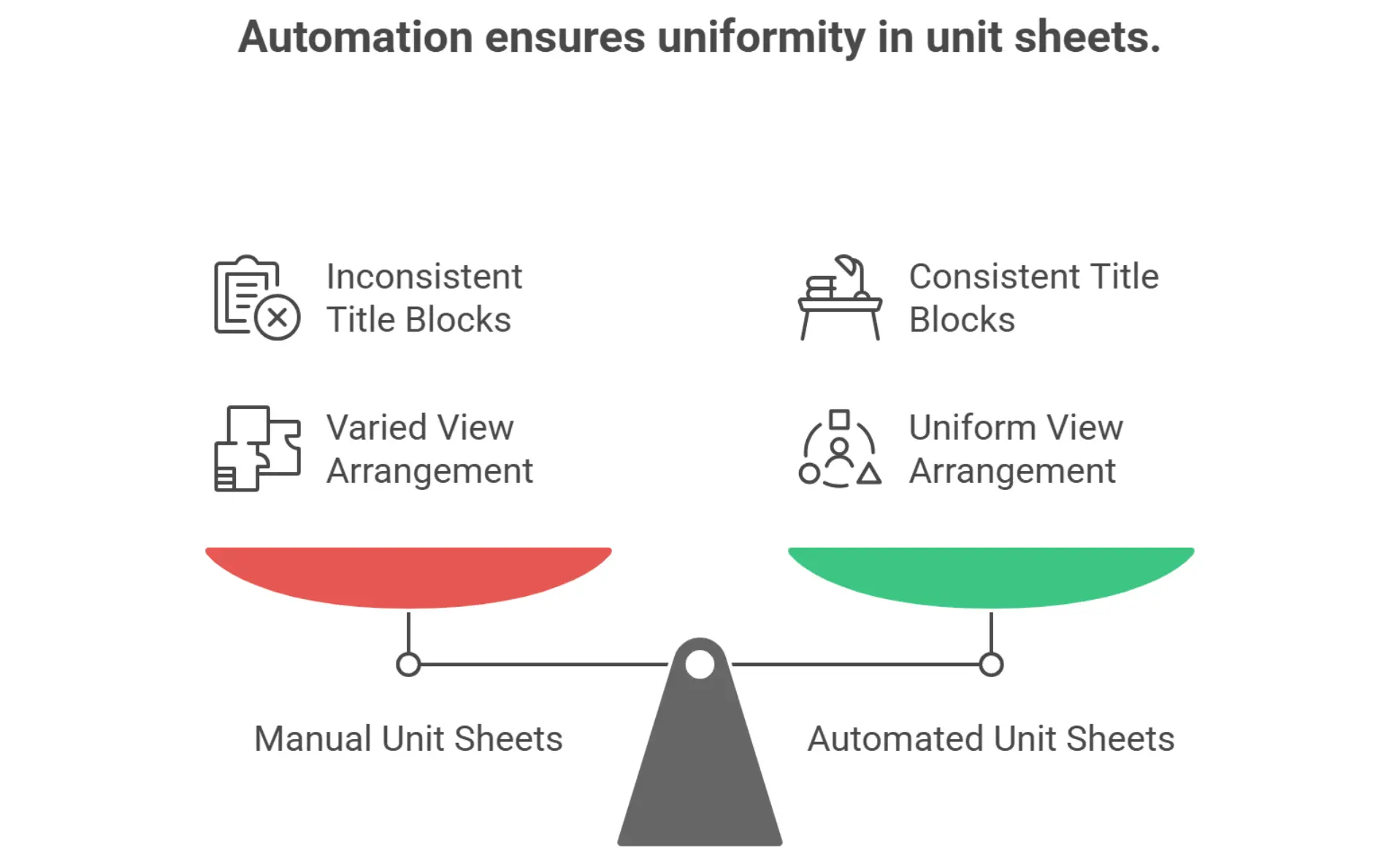
- Consistency across repetitive units: Revit + Dynamo enforces the same title blocks, view templates, and coordinates across hundreds of units. That drops graphic drift and keeps inspectors from flagging oddities. Independent coverage shows Dynamo automation significantly reduces human error and rework in BIM tasks.
- Reduced risk of human error: Automation reduces manual input, meaning fewer typos in sheet numbers, misnamed views, or misplaced viewports.
- Faster turnaround for approvals: By standardising sheet sets, consultants and permitting authorities review cleaner packages. Fewer corrections mean faster permit cycles.
- Improved profitability: Saving 120 hours on a single project both frees staff time and reduces overhead, and faster project delivery.
- Better team morale: Your team stops copy-pasting and starts solving design problems. Automation handles the repetitive; people handle the judgment calls.
Remote Delivery Model: How Teams Can Scale Automation
You can run Dynamo Auto-Sheets with a distributed team and keep quality tight.
Roles to consider
- Remote Dynamo Specialist: builds and maintains custom scripts.
- BIM Coordinator: guarantees outputs align with the BIM Execution Plan (BEP) and QA/QC standards.
- QA Reviewer: audits the sheet set before the issue.
Secure handoffs
Match add-ins and versions on both sides. Use a Common Data Environment (ACC/BIM 360) with role-based folders and version states. Autodesk’s Model Coordination and ACC guides outline shared spaces for clash reviews and document control.
Hiring signals
Look for remote staff with portfolios showing Dynamo graphs, clear code comments, and examples of Revit API integration. This indicates they can deliver more than “copy-paste” scripts.
Market context
Labour remains tight, and many candidates value flexible/remote options, one driver behind distributed BIM staffing. The AGC 2024 Workforce Survey highlights persistent shortages and the need for flexible work arrangements among candidates. That’s a strong case for construction industries outsourcing roles to keep projects moving (AGC, 2024).
With over 15 years of experience in AEC staffing, Remote AE has helped firms scale Dynamo-driven automation through vetted virtual construction assistants who know Autodesk Revit, Dynamo, and BIM Execution Plan workflows.
ROI & Resourcing
Time and Cost Calculator Example
For a multi-family housing project with 800–1,200 sheets, manual setup can easily consume 150–200 staff hours. At an average loaded labor rate of $65/hour, that’s over $10,000 per project just in sheet creation and coordination. With Dynamo Revit automate sheet creation, that workload shrinks to around 20–30 hours, saving more than $8,000 per project. Multiply that across multiple complexes in a developer’s portfolio, and the ROI is immediate.
In-House vs. Remote Partner: When to Choose Which
- In-house automation works best when:
- You already have BIM staff who are comfortable with Dynamo and Revit API.
- The project pipeline is steady enough to justify training and script upkeep.
- Remote partner support is better when:
- Teams are overloaded with deadlines and cannot pause to build automation.
- You need Dynamo specialists for script customisation, QA/QC, and sheet delivery at scale.
- You want predictable costs without permanent headcount.
Pilot Scope for Multi-Family Complexes
A smart way to start is with a pilot project. Select a block of 50–100 units from a multi-family complex and use Dynamo auto-sheets to:
- Automate sheet numbering and title block setup.
- Batch-place views with pre-set coordinates from Excel.
- Run QA/QC checks on generated sheets.
This pilot provides measurable benchmarks, such as hours saved, error reduction, and turnaround speed, that leadership can use to justify scaling automation across the entire portfolio.
Need Dynamo Auto-Sheets Without Burning Out Your Team?
Setting up Dynamo auto-sheets for Autodesk Revit can feel overwhelming if your team is already at capacity. That’s where Remote AE steps in. We’ve spent over 15 years supporting AEC firms with remote specialists who know Dynamo, Revit API, Excel integration, BIM Execution Plans, and QA/QC workflows. Contact Remote AE today to see how our outsourced AEC staffing can help you save time, reduce errors, and deliver projects faster, with Dynamo auto-sheets doing the heavy lifting.
FAQs – Dynamo Auto-Sheets Save 120 Hours
Can Dynamo create sheets and place views in set positions?
Yes. Dynamo scripts can generate sheets and place views using predefined X/Y coordinates. This ensures consistency across multiple sheets, especially for detail views or plans.
How do I import a sheet list from Excel into Revit via Dynamo?
You can read an Excel sheet list with the Data.ImportExcel node and use it to drive sheet creation in Dynamo. Titles, numbers, and view assignments can all be mapped from Excel columns.
Why does my script create one sheet and then overwrite others?
This is usually caused by element binding. Revit overwrites the sheet if your script reuses the same element ID. Use List.Map, disable binding, or restructure the graph so each sheet gets a unique element.
What if I need a no-code option for non-scripters?
Add-ins like SheetGen or IdeateApps let you batch-create and manage sheets without writing Dynamo scripts. They’re user-friendly for project teams who don’t code.
Is this viable for multi-building or phased projects?
Yes, but keep sheet lists structured by building ID or phase code. Consider add-ins or Dynamo scripts that handle grouping, naming, and filtering to avoid conflicts across phases.