

Autodesk Civil 3D has become the production engine for infrastructure and site design across the AEC industry. But as remote civil engineers take on more of the core design workload, the question isn’t if Civil 3D can support distributed teams; it’s if your workflows, collaboration tools, and QA/QC protocols are structured to make it work reliably.
This article explores the complete Civil 3D site design workflow for remote teams, from importing survey data to producing issue-ready deliverables. Also, it covers the collaboration infrastructure, quality controls, and staffing strategies that separate high-performing distributed teams from ones that constantly fight file conflicts and rework.
What Is Civil 3D and Why Does It Matter for Remote Engineers
Civil 3D is the industry-standard parametric design platform for civil infrastructure and site design. It connects geometry, data, and design intent in a single model. So when one element changes, dependent objects update automatically across the project.
For remote civil engineers, that intelligence is what makes distributed production viable. Design decisions made by one team member propagate correctly through the model rather than requiring manual coordination across disconnected files.
Overview of Civil 3D
Civil 3D is purpose-built for land development, transportation, and infrastructure projects. Its core capabilities form the backbone of any Civil 3D site design workflow:
- Surface modeling: Build existing and proposed ground surfaces from survey data, point clouds, and contour data. Civil 3D generates TIN surfaces (Triangulated Irregular Networks) that drive grading, volume calculations, and drainage analysis.
- Grading: Model site grading using feature lines, grading objects, and Grading
- Optimization tools to minimize earthwork and meet design intent efficiently.
- Corridor design: Create dynamic corridor modeling objects that combine alignment, profile view, and assembly geometry, essential for roads, channels, and complex graded pads.
- Pipe networks: Design and analyze pipe networks for sanitary sewer, water, and storm drainage with full profile view integration and clash awareness.
- According to Autodesk’s 2023 State of Design & Make report, over 60% of infrastructure firms cite model-based design tools as critical to project delivery efficiency, with Civil 3D ranking as the most widely adopted platform in the civil engineering segment.
Why Civil 3D Works for Remote Site Design Teams
Civil 3D’s parametric object model means that a remote civil engineer can own discrete, clearly scoped deliverables, surfaces, alignments, and corridors without needing to be physically co-located with the project team.
Where Remote Civil 3D Workflows Usually Break
Most remote Civil 3D failures trace back to three structural problems, not skill gaps:
- No shared reference system: Teams using local Xrefs instead of properly configured Data Shortcuts create version conflicts that compound with every design iteration.
- Inconsistent templates: Without enforced Civil 3D templates, styles, and layer standards, deliverables from different team members require significant rework before they can be combined.
- No cloud access infrastructure: Engineers working off locally synced files without Autodesk Docs or Autodesk BIM Collaborate Pro lose version history, audit trails, and real-time coordination capability.
Fix these three structural issues first; everything else is execution.
The End-to-End Civil 3D Site Design Workflow
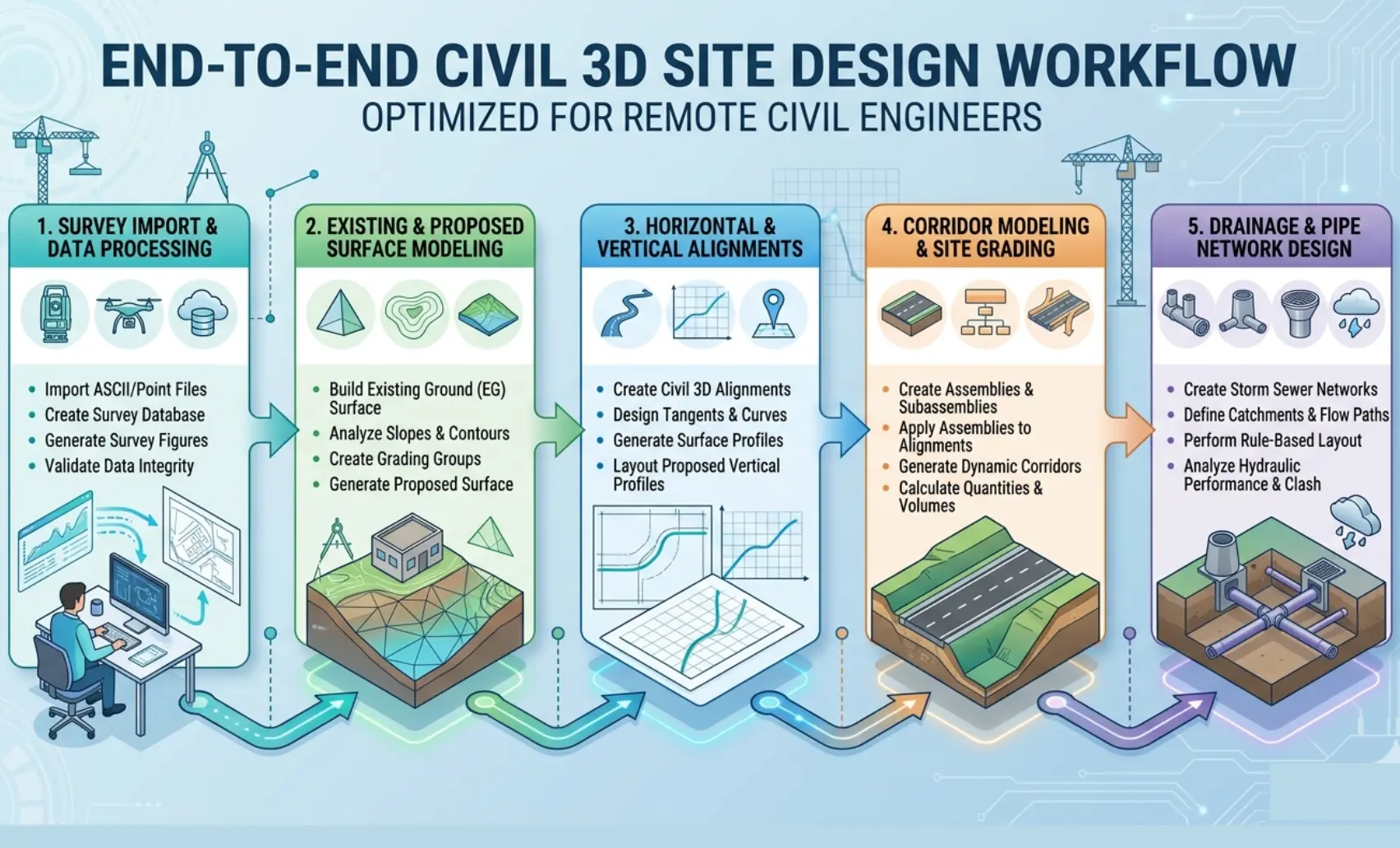
A structured workflow keeps remote teams aligned and reduces rework. Here is the sequence that high-performing distributed teams follow on every project.
Import Survey, GIS, and Existing-Conditions Data
Every project starts with clean, verified survey data. Remote civil engineers import point files, LandXML surfaces, and GIS layers directly into Civil 3D.
Key steps:
- Confirm coordinate systems match the project datum before importing
- Audit point data for outliers before building any surface
- Reference existing utility and boundary data as Xrefs; never copy geometry into the working file
Poor data intake is the single most common cause of surface errors downstream. Validate inputs before modeling begins.
Build Surfaces and Reference Existing Ground Correctly
Once data is imported, engineers build the existing ground TIN surface from verified point data and breaklines.
- Use breaklines to force the TIN to honor drainage channels, curbs, and ridgelines
- Set a surface style that displays contours at both major and minor intervals
- Publish the existing ground surface as a Data Shortcut immediately; all team members reference this object, never a copied surface
Publishing via Data Shortcuts ensures every engineer works from the same live surface definition. If the survey updates, one republish cascades the correction across all referencing files automatically.
Lay Out Alignments, Parcels, and Grading Intent
With the existing surface confirmed, the design layout begins.
- Draw alignment geometry for roads, access drives, and site boundaries
- Create parcels from alignment and parcel segment geometry
- Establish finished floor elevations and grading targets before building any grading objects
Publish alignments as Data Shortcuts so corridor and drainage designers can reference them without file dependency conflicts.
Choose Grading Objects or Corridors Based on Site Complexity
This is where many remote teams make the wrong call and pay for it in rework.
- Grading objects: Best for simple pads, parking lots, and single-slope grading scenarios
- Corridor modeling: Required for roads, channels, and any graded feature with a defined cross-section that changes along a path
- Grading Optimization: Use for cut/fill balancing on complex sites where earthwork cost is a primary design driver
Match the tool to the geometry. Using corridors for simple pads adds unnecessary complexity. Using grading objects for a roadway produces uncontrollable surfaces.
Model Drainage With Pipe Networks and Profile Views
Storm drainage design runs parallel to grading, not after it.
- Build pipe networks using Civil 3D’s pipe and structure catalogs
- Open profile views for each drainage run to verify cover, slope, and outlet conditions
- Run interference checks between pipe networks and corridor models before finalizing
Design drainage to daylight at confirmed outfall locations. Remote engineers should flag any conflict between proposed pipes and existing utilities in a shared issue log before advancing to production.
Produce Quantities, Sheets, Markups, and Issue-Ready Deliverables
The final workflow stage converts the model into client-ready output.
- Extract earthwork volumes directly from Civil 3D surface comparisons
- Build plan and profile sheets using Civil 3D’s plan production tools
- Export PDFs to Autodesk Docs for markup and review
- Log all review comments in the project’s issue tracker before closing the sheet set
Every deliverable must pass a QA/QC review gate before it leaves the remote team’s queue.
Collaboration Setup for Distributed Civil 3D Teams
Workflow quality depends entirely on collaboration infrastructure. Get this wrong and even skilled remote civil engineers will produce conflicting, uncoordinated deliverables.
Data Shortcuts vs Xrefs: What Each One Should Do
These two referencing mechanisms serve different purposes. Conflating them causes the most common Civil 3D coordination failures.
| Data Shortcuts | Xrefs | |
| Use for | Civil 3D objects, surfaces, alignments, pipe networks | Non-Civil geometry — existing utilities, site context, survey boundaries |
| Updates | Live, consumers see changes when republished | Manual — requires reload or bind |
| Best practice | All design objects are shared between team members | External reference context only |
Rule: Never share a Civil 3D surface or alignment via Xref. Always use Data Shortcuts. This one rule eliminates the majority of remote coordination failures.
Autodesk Docs vs BIM Collaborate Pro: What Changes
Both platforms sit inside Autodesk Construction Cloud, but they serve different functions for remote teams.
- Autodesk Docs: Document management, sheet distribution, markup workflows, and issue tracking. Every remote civil engineer accesses project files, PDFs, and review markups here.
- Autodesk BIM Collaborate Pro: Adds model coordination, cloud worksharing, and Data Shortcut hosting for distributed Civil 3D teams. Required when multiple engineers are actively editing connected Civil 3D files simultaneously.
For teams working on complex multi-discipline site design projects, Autodesk BIM Collaborate Pro is the infrastructure layer that makes concurrent remote production safe and controlled.
Folder Structure, Naming Rules, and Permissions
Without enforced folder standards, remote teams accumulate file chaos within weeks.
Recommended folder structure:
- /00_Survey — raw and processed survey data
- /01_Existing — existing conditions surfaces and base files
- /02_Design — active Civil 3D design files
- /03_Data Shortcuts — all published shortcut XML files
- /04_Sheets — plan production and PDF output
- /05_Review — markup files and issue logs
Naming convention example: [ProjectCode]_[Discipline]_[FileType]_[Version].dwg. Apply role-based permissions in Autodesk Docs. Engineers access their discipline folders; project leads access all. Align permission levels with ISO 19650 access control requirements.
Communication Best Practices
Structure matters as much as technology for remote Civil 3D teams.
- Daily check-ins: 15-minute async updates via shared log, what was completed, what’s blocked, what’s next
- Markups and feedback loops: All redlines submitted through Autodesk Docs, no email attachments, no informal markups
- Screen sharing: Use screen sharing tools for live coordination on complex corridor or drainage conflicts, faster than written back-and-forth
QA/QC Rules That Keep Remote Work Safe
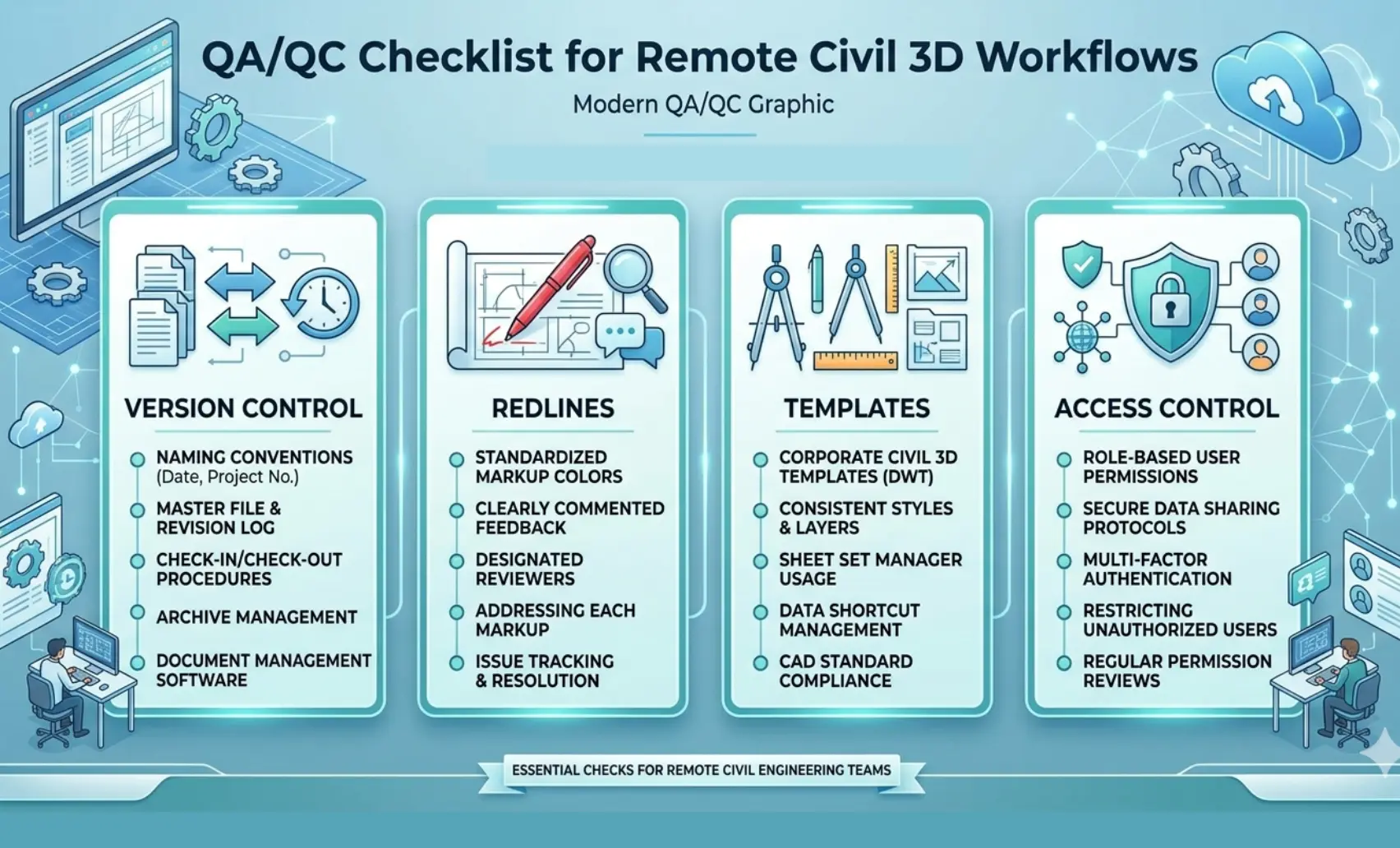
Remote production without structured QA/QC creates compounding errors. Every remote Civil 3D team needs three control layers, templates, version control, and access rules, operating in parallel.
Template, Style, and Layer Control
Inconsistent styles produce inconsistent deliverables. Lock this down before any production begins.
- Distribute a single Civil 3D template (.dwt) to all remote engineers, no exceptions
- Define all surface styles, label styles, and pipe network styles within the template
- Set layer standards using your firm’s layer naming convention, and enforce these through the template, not through verbal instruction
- Never allow engineers to create custom styles outside the approved template library
One template, enforced at project kickoff, eliminates the majority of deliverable inconsistency in remote Civil 3D site design workflow execution.
Version Control, Redlines, and Review Gates
Version control is the backbone of safe remote production.
- Store all active files in Autodesk Docs, never on local drives or personal cloud storage
- Use sequential versioning in file names: _v01, _v02, never overwrite a previous version
- Submit all design redlines through Autodesk Docs markup tools, and maintain a complete audit trail
- Align version control practices with ISO 19650 information management standards. This matters especially for public infrastructure and international project delivery
Review gates are non-negotiable checkpoints before any file advances:
- Gate 1: Survey data verified before surface build
- Gate 2: Existing ground TIN surface approved before design begins
- Gate 3: Alignment and profile view confirmed before corridor or drainage modeling
- Gate 4: Full QA/QC sign-off before sheet issue
No file advances without a named reviewer completing the gate check.
Security, Access Control, and Handoff Rules
Remote access to sensitive project data requires an explicit permission architecture.
- Assign role-based access in Autodesk Docs so that engineers can access only their active project folders
- Revoke access immediately when a team member’s scope closes
- Document all handoff points, who transferred what file, at what version, on what date
- Require signed NDAs before granting access to any project repository
- Align access control structure with ISO 19650 Common Data Environment requirements
Handoff documentation is your protection against disputes over file state at any point in the project lifecycle. Treat it as a contractual record, not an administrative formality.
When to Hire Remote Civil 3D Support
Not every task needs a full-time in-house Civil 3D engineer. Remote support delivers the most value when scoped to the right roles and deliverables.
Best Tasks to Delegate First
Start with well-defined, repeatable tasks that don’t require daily field coordination:
- Existing ground surface modeling from imported survey data
- TIN surface cleanup and breakline refinement
- Alignment drafting and geometry checks
- Profile view development for roads and drainage runs
- Pipe network layout and profile verification
- Storm drainage calculations and outlet analysis
- Quantity extraction and earthwork volume reporting
- Plan production and sheet formatting
These tasks represent a significant share of production hours on most site design projects, and all of them are fully executable remotely with proper Data Shortcuts and cloud access in place.
Skill Checklist for Vetting Remote Civil 3D Talent
Before placing a remote civil engineer on a live project, verify these competencies:
- Proficient in Autodesk Civil 3D surface, corridor, and pipe network tools
- Understands Data Shortcuts setup, publishing, and referencing
- Familiar with Xrefs management in multi-file project environments
- Experience with Grading Optimization and earthwork balancing
- Can build and annotate profile views for roads and storm drainage
- Works within Autodesk Docs or Autodesk BIM Collaborate Pro environments
- Follows ISO 19650 naming and version control standards
- Delivers to a defined QA/QC checklist without supervision
Candidates who can demonstrate these skills on a test task, not just a resume, are the ones worth onboarding.
Licensing and Software Access Questions to Settle Early
Software access is often overlooked until it blocks production. Resolve these before onboarding:
- Does the remote engineer have a valid Autodesk Civil 3D license, or does your firm need to provide a seat?
- Are they on the same Civil 3D version as your in-house team? Version mismatches corrupt files.
- Do they have access to your Autodesk Construction Cloud project environment?
- Have you configured their Autodesk Docs permissions before their first production day?
- Are third-party tools, survey imports, and drainage analysis plugins licensed and installed?
Settle licensing and access on day one. Unresolved software questions in week two cost more than the onboarding delay.
How Remote AE Supports Civil 3D Workflows
Remote AE connects AEC firms with pre-vetted remote civil engineers who are trained in production-ready Civil 3D workflows, not learning on your projects.
Skilled Remote Civil Engineers
Every Remote AE engineer arrives ready to contribute to your Civil 3D site design workflow from day one.
- Pre-trained in surface modeling, corridor modeling, pipe networks, and Grading Optimization
- Experienced with Data Shortcuts, Xrefs, and Autodesk Construction Cloud environments
- Familiar with ISO 19650 naming conventions and version control standards
- Capable of working within your firm’s existing QA/QC framework without additional supervision
Scalable Staffing for AEC Firms
Remote AE’s staffing model adapts to your project pipeline, not the other way around.
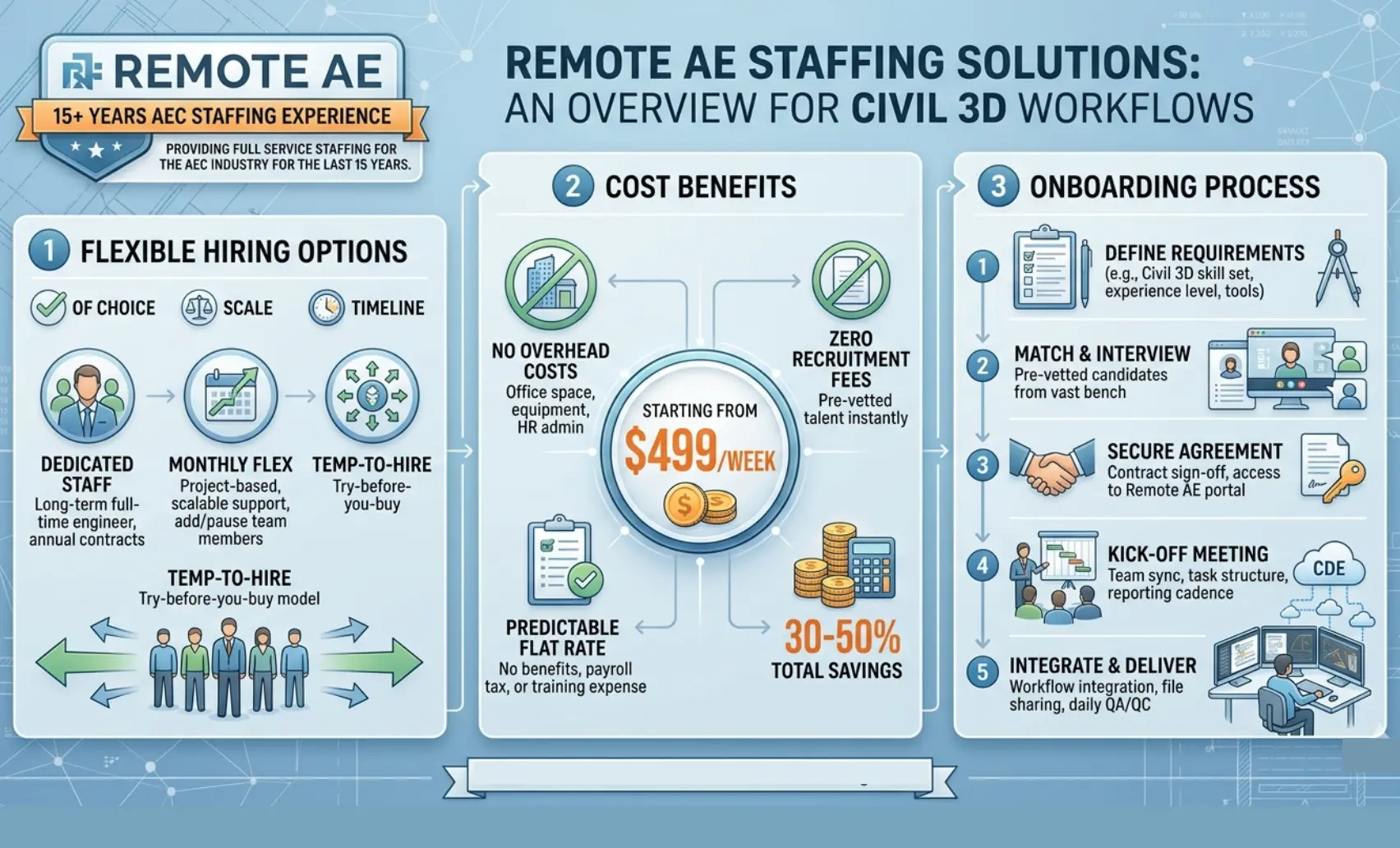
- Flexible hiring: Part-time or full-time engagement based on active project demand
- Project-based support: Bring in a remote civil engineer for a defined scope without a long-term headcount commitment
- No upfront costs: Consult with the Remote AE team without any initial financial burden. There is no cost or obligation until the contractual phase begins. Evaluate fit before you commit
- Risk-free replacement: In the first year, Remote AE offers risk-free replacements for up to two remote engineers. If a placement doesn’t meet your production standards, it gets resolved without disrupting your active project
Cost and Time Benefits
The financial case for remote Civil 3D support is straightforward.
- Reduced overhead: No office space, equipment, or benefits costs. Remote AE engineers operate within your Autodesk Docs and Autodesk BIM Collaborate Pro environments using their own licensed software setup
- Faster turnaround: Pre-trained engineers skip the learning curve. Production starts in days, not weeks
- Industry-specific expertise: Remote AE engineers understand AEC delivery cycles, Civil 3D production standards, and the coordination demands of distributed site design teams
- Staffing from $499/week: Professional remote civil engineer support accessible for firms at every growth stage
According to the U.S. Bureau of Labor Statistics, the median annual salary for a civil engineer in the U.S. reached $95,890 in 2023, before benefits, software, and overhead. Remote AE’s model delivers the same technical output at a fraction of that fully loaded cost.
Add Civil 3D Production Capacity, Without the Overhead!
Your in-house team has limits. Your project pipeline doesn’t have to. Remote AE places pre-vetted, production-ready civil engineers in Civil 3D who handle surface modeling, corridor modeling, pipe networks, storm drainage, and full site design deliverables within your existing workflows and QA/QC standards.
Stop losing production time to hiring cycles and capacity gaps. Book a Free Consultation with Remote AE Today, no obligation, no pressure. Just a direct conversation about what your Civil 3D workflow needs right now.
FAQs – Civil 3D for Remote Civil Engineers
Can remote teams use Civil 3D data shortcuts in the cloud?
Yes. Autodesk supports Civil 3D collaboration on Autodesk Docs using Autodesk Collaboration for Civil 3D, which is designed for cloud-based data shortcut workflows across distributed teams. Team members without that collaboration entitlement can still open drawings that contain data shortcut references, but they cannot create or manage those shortcuts in the cloud project.
Do you need BIM Collaborate Pro to create Civil 3D data shortcuts in Autodesk Docs?
For current Autodesk cloud workflows, yes, in practice: Autodesk states that creating Civil 3D data shortcuts in an Autodesk Docs project requires access to Autodesk Collaboration for Civil 3D, which Autodesk ties to a BIM Collaborate Pro assignment in its current help and support content.
What is the difference between data shortcuts and Xrefs in Civil 3D?
Xrefs reference drawing graphics. Data shortcuts reference Civil 3D design objects such as surfaces, alignments, profiles, corridors, pipe networks, pressure networks, and view frame groups. In short: Xrefs are for attached drawings; data shortcuts are for shareable Civil 3D design data that multiple team members can work with across a project.
Should I use corridors or grading objects for site design?
For many site projects, Autodesk University guidance suggests corridors are stable but more advanced, while grading objects are easier but less stable. The same guidance highlights feature lines as a strong option for many site-grading workflows. For roads and repeatable assemblies, corridors are usually the better fit; for smaller site shaping, feature-line-driven grading is often easier to control.
What tasks can a remote civil engineer safely handle in Civil 3D?
Remote civil engineers can safely handle surface work, alignments, profiles, grading, pipe networks, quantity support, sheet production, and data-shortcut-based model updates when the workflow is standardized. High-liability items such as final design judgments, jurisdiction-specific compliance calls, and signed deliverables should stay under the licensed engineer’s direct control. The software and collaboration tooling support the technical production side well.