

Generic AI drafting tools produce generic output, wrong layer names, mismatched title blocks, non-standard Revit families, and lineweights that violate your firm’s drawing standards. For AEC firms, that output creates rework, triggers plan review corrections, and undermines the QA/QC discipline that protects project margins. A 2023 Autodesk survey found that poor data quality, including drawing standard inconsistencies, costs construction teams an average of 48% of their working hours in rework and correction. Training AI on your firm’s specific CAD standards changes that equation, but only when the training is structured correctly, and human review remains part of the workflow.
Why Firm-Specific CAD Standards Matter More Than Generic AI Drafting
AI Is Only Useful When It Understands Your Production Rules
Generic AI drafting tools are trained on broad datasets, not your firm’s layer naming convention, your title block field requirements, or your Revit family naming protocol. The output looks like drafting. It is not your drafting.
Common failures when AI drafts without firm-specific training:
- Wrong layer names: AI defaults to generic layer conventions that violate AIA CAD Layer Guidelines or your firm’s custom naming structure
- Wrong lineweights: Output uses default lineweight assignments rather than your plot style table or Revit object style definitions
- Incorrect title block fields: Project number, issue date, revision block, and seal location populated incorrectly or left blank
- Mismatched detail tags: Detail callout bubbles reference sheet numbers that don’t exist in your sheet set
- Poor Revit family naming: Families loaded from generic libraries rather than your firm’s approved Revit families, breaking schedules, tags, and parameter consistency across the project
The difference between AI drafting and AI trained on your standards is the difference between a tool that generates output and a tool that generates your output.
Standards Protect Quality, Speed, and Margins
Drawing standards are not an administrative preference. They are a production playbook that directly affects project outcomes.
Clean, standards-compliant drawing sets generate fewer RFIs, and reviewers and contractors find information where they expect it. Permit applications built on consistent sheet sets with correct code summaries and life safety plans move through plan review faster.
Rework caused by non-standard details, wrong layer assignments, or mismatched Revit families costs real hours that no project budget absorbs comfortably.
BIM Heroes frames drawing standards as the foundation of production consistency, the rules that allow a team to scale output without scaling errors. AI trained on those standards enforces them at the speed of production, not the speed of manual QA/QC review.
What “Training AI on CAD Standards” Actually Means
It Does Not Always Mean Building a Custom AI Model From Scratch
Most AEC firms do not need to build a custom machine learning model to get AI standards enforcement working in their production environment. Three practical implementation levels exist, and the right one depends on your firm’s size, technical capacity, and standards maturity.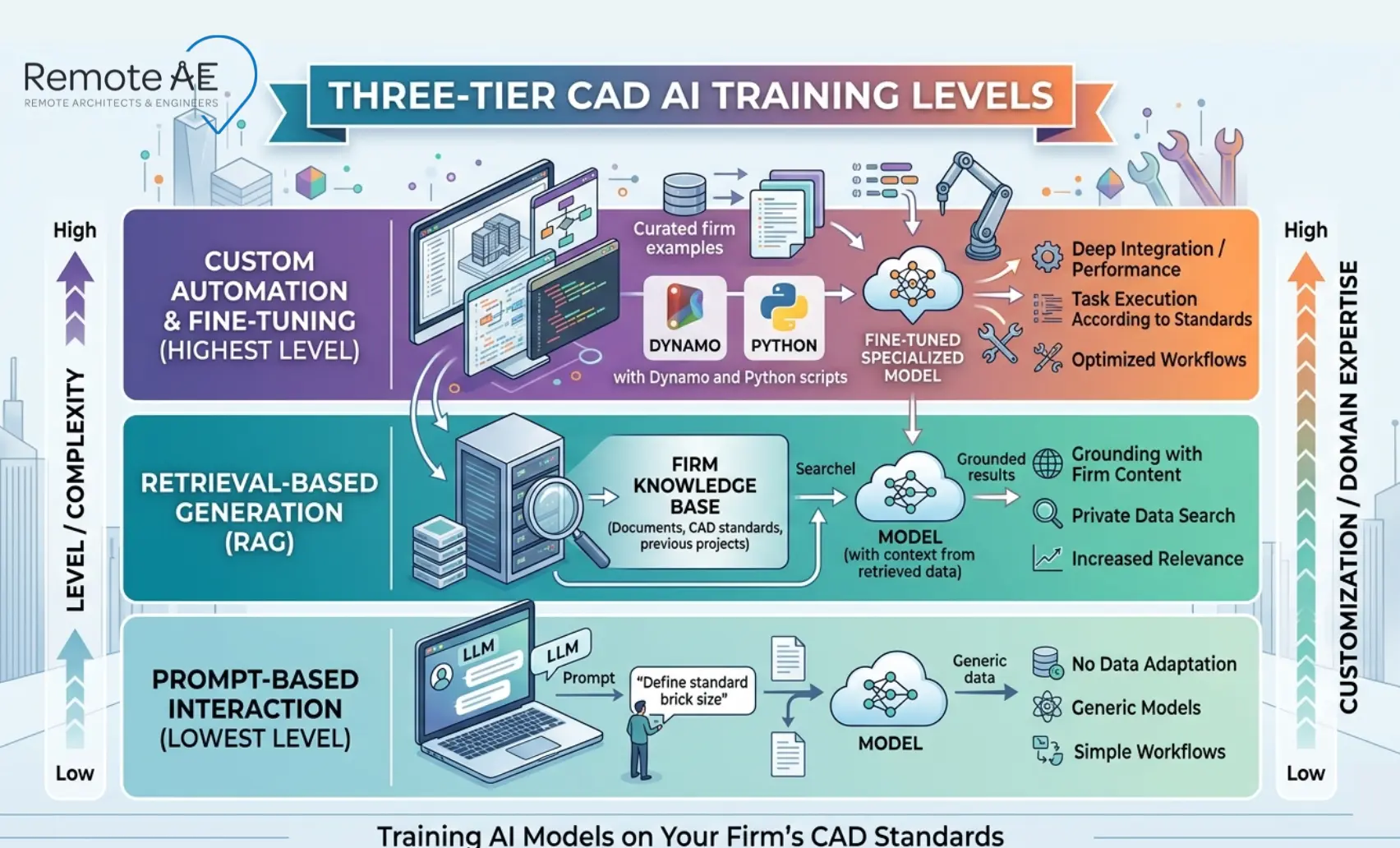
Level 1: Prompt-based training:
- Reusable instruction sets that tell AI tools exactly how to interpret, review, or generate CAD content against your standards
- CAD checklist prompts that instruct AI to flag specific violations, wrong layer prefix, missing title block field, and incorrect sheet number format
- Redline review prompts that parse PDF markups and generate structured task lists aligned to your drawing standards
- Best fit for: small AEC firms with defined standards and limited technical resources
Level 2: Retrieval-based setup:
- AI reads your approved CAD manuals, detail libraries, QA/QC checklists, and drawing standards documentation before responding to any drafting or review task
- Creates a standards-aware AI assistant without requiring any model training or code, the AI retrieves your rules before generating output
- Best fit for: small and mid-sized AEC firms with documented standards that can be structured as readable reference documents
Level 3: Custom automation or model tuning:
- Dynamo scripts enforce Revit family naming, workset assignments, and shared parameter rules across the model automatically
- AutoLISP scripts enforce AutoCAD layer standards, lineweight assignments, and block insertion rules at the file level
- Python scripts connect AI models to your Common Data Environment, checking uploaded files against standard rules before they enter the shared environment
- Revit API and AutoCAD scripts provide programmatic enforcement that operates independently of user judgment
- Best fit for: mid-size to large AEC firms with high-volume production, dedicated BIM manager or CAD manager capacity, and repeatable project types
The Goal Is Standards-Aware Assistance, Not Blind Automation
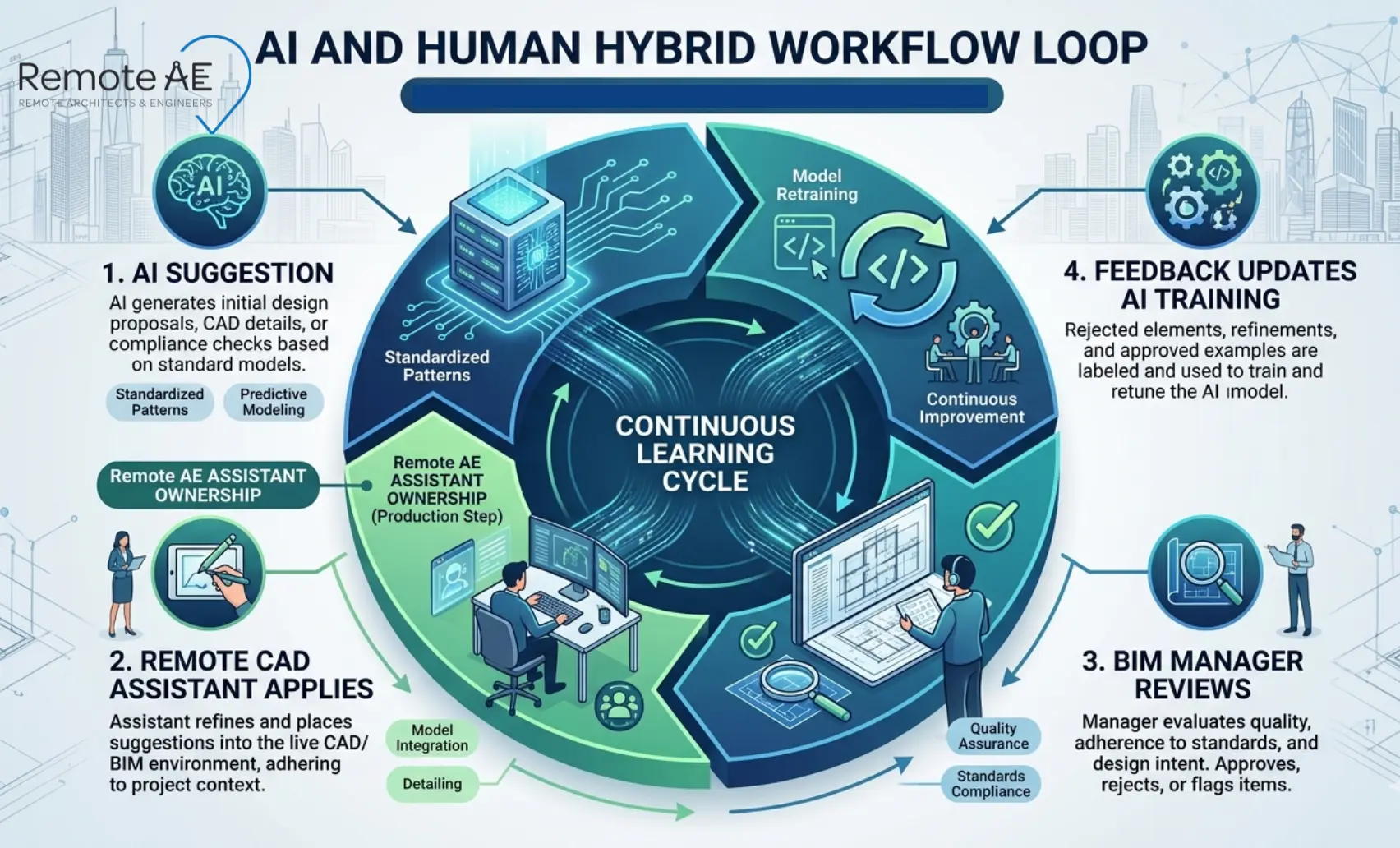
The output of any AI training investment should be a structured human-AI workflow, not full automation.
- AI suggests the correction or flags the violation
- A human verifies that the suggestion is correct in the project context
- The CAD manager or BIM manager approves the resolution
- A remote CAD assistant or virtual drafting assistant applies the update in the live production file
What CAD Standards Should Be Included in the AI Training Set?
Core CAD and BIM Rules to Document First
Before any AI tool can enforce your standards, those standards must be documented in a format the AI can read, reference, and apply. Most AEC firms have standards embedded in templates and tribal knowledge, not in structured, machine-readable documentation.
Document these rule categories first:
AutoCAD and 2D CAD rules:
- Layer naming rules, discipline prefix, description suffix, and AIA CAD Layer Guidelines alignment
- Lineweights and linetypes, plot style table assignments per layer and object type
- Text styles, font, height, and color per use case (annotation, dimensions, notes, titles)
- Dimension styles, scale-dependent settings, arrowhead type, and precision
- Title block rules, required fields, field format, seal location, revision block structure
- Sheet numbering, discipline prefix, sequential numbering format, and coordination with the sheet index
- Revision cloud rules, cloud size, delta tag format, revision block population sequence
- File naming conventions, project code, discipline, document type, revision, and date fields
- Xref rules, attachment vs overlay, file path type, layer visibility on import
- Plot settings, plot style table, paper size, scale, and output format per sheet type
Revit and BIM rules:
- Revit family naming, category, type, manufacturer, and size parameters in consistent order
- Workset rules, discipline workset structure, default workset assignment per element category
- Shared parameter rules, approved parameter file, required parameters per family category
- View naming, discipline prefix, level reference, view type, and scale in the view name
- Detail callout logic, reference sheet format, detail number sequence, callout bubble type
- Export rules, DWG export layer mapping, PDF naming, IFC model view definition, COBie data mapping
Turn Your Standards Into Machine-Readable Rules
Documented standards only become AI-trainable when they are written in specific, testable language, not aspirational descriptions.
| Format | Example |
| Bad | “Make drawings look clean and professional.” |
| Better | “All demolition layers begin with D-“ |
| Best | “Flag any layer that does not match AIA/NCS-style discipline prefix format — A-, S-, M-, E-, P-, C-, L-, or D-“ |
The best format is binary; either the rule is met, or it is not. AI performs well on binary rules. It performs poorly on subjective descriptions that require aesthetic judgment to evaluate.
Write every standard as a rule that can be checked programmatically, by a Python script, an AutoLISP routine, a Dynamo graph, or an AI prompt that has been given explicit pass/fail criteria.
Best AI Use Cases for CAD Standards in AEC Firms
Redline Interpretation and Drafting Task Lists
Redlines are the primary communication channel between project managers, reviewers, and drafters, and they are consistently misread, incompletely actioned, or lost in PDF markup workflows.
AI trained on your drawing standards can:
- Read PDF markups from Bluebeam Revu or Autodesk Construction Cloud and extract every comment as a structured task
- Create a numbered task list organized by sheet, discipline, and urgency
- Group comments by type, dimensions, annotations, layer corrections, and title block updates
- Assign each task to the correct discipline drafter based on the element type flagged
- Flag unclear or ambiguous markups for human clarification before the drafter wastes time on an incorrect interpretation
This workflow recovers hours of project manager and BIM manager time spent verbally clarifying redlines that should have been clear from the markup alone.
Sheet Setup and Naming Checks
Sheet setup errors are the most common first-round QA/QC failure in AEC production, and the most preventable.
AI checks for:
- Sheet numbers that don’t follow the firm’s discipline prefix and sequential numbering convention
- View titles that are missing, incorrectly formatted, or inconsistent with the sheet index
- Drawing issue dates that don’t match the revision block or the transmittal date
- Discipline prefixes are missing from view names or detail callout references
- Revision sequences that skip numbers, duplicate entries, or use non-standard delta tags
Running these checks before a drawing set goes to the BIM manager for QA/QC review eliminates the most time-consuming category of standards corrections, ones that have nothing to do with design and everything to do with production discipline.
Layer, Block, and Family Compliance Checks
This is where AI standards enforcement delivers its highest volume of caught errors per hour of implementation effort.
AI compliance checks for AutoCAD and Revit production:
- Wrong layer names, elements placed on layers that don’t match the AIA CAD Layer Guidelines or firm standard
- Non-standard blocks, CAD blocks inserted from outside the firm’s approved block library
- Duplicate details, the same detail appearing under different detail numbers across a drawing set
- Unapproved Revit families, families loaded from Autodesk content library or third-party sources, rather than the firm’s vetted family library
- Missing parameters: Revit families are missing required shared parameters that drive schedules or tags
QA Before Permit or IFC Issue
The most expensive point to catch a standards error is after a permit set is issued or an IFC model is exported to an openBIM coordination environment. AI pre-issue QA catches them before.
Pre-issue checks AI can run:
- Drawing index completeness: Every sheet listed in the index exists in the set
- Sheet-to-view consistency: every view shown on a sheet matches the sheet index and section cut location
- Missing legends, keynote legends, drawing legends, and abbreviation lists are present and correctly referenced
- Uncoordinated keynote references, keynotes that reference details not included in the submitted set
- IFC export package review, model elements correctly classified, required IFC property sets populated, ISO 19650 naming conventions applied to exported files
The NIST AI Risk Management Framework recommends structured validation testing before deploying AI outputs in consequential workflows; pre-issue QA checks are the validation layer responsible for AI deployment in AEC.
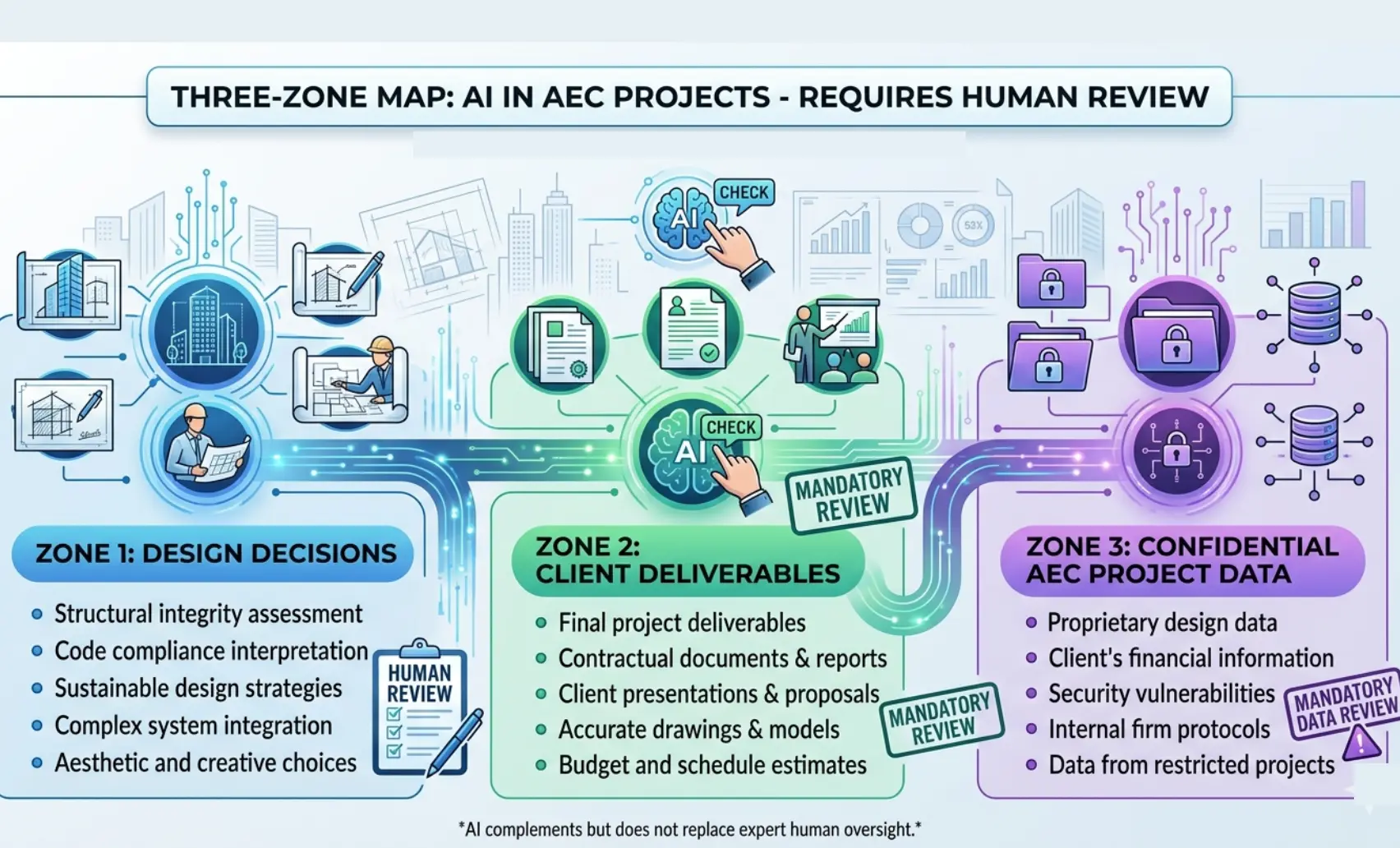
What AI Should Not Do Without Human Review
Design Decisions
AI enforces standards. It does not make design decisions, and the distinction matters legally and professionally.
Never delegate these to AI without licensed professional review:
- Structural assumptions: Beam sizing, load path logic, and connection design all require a licensed structural engineer
- Egress strategy: Exit locations, travel distances, and occupancy load calculations require code interpretation by a licensed architect
- Fire rating judgment: Assembly ratings, penetration details, and compartmentalization decisions require fire code expertise
- Accessibility decisions: ADA path of travel obligations on alteration projects require professional interpretation of local amendments
- Code interpretation: When two code sections conflict or a local amendment applies, AI cannot reliably resolve the ambiguity
Client-Facing Deliverables
AI output should never leave the firm without a structured review gate. No drawing set, permit package, or IFC export should be issued based solely on AI-generated or AI-checked content.
Every client-facing deliverable requires:
- BIM manager or CAD manager review against the QA/QC checklist
- Licensed professional sign-off on all technical content
- Completed standards checklist with reviewer initials
- Updated revision log confirming the current issue status
Confidential or Restricted Project Data
AI tools that send data to external servers, cloud-based AI platforms, and third-party APIs create data security exposure that AEC firms must manage explicitly before deploying them on sensitive projects.
Do not feed these into external AI tools without explicit data handling controls:
- Client NDAs covering project design data
- Government and defense projects with classified or sensitive site information
- Healthcare projects with patient privacy implications
- Proprietary structural details or building envelope systems
- Private site layouts for high-security clients
Confirm your AI tool’s data retention and processing policies before connecting it to your Common Data Environment or Autodesk Construction Cloud project data.
Step-by-Step Process to Train AI Models on CAD Standards
Step 1: Define Your Training Objectives
Start with a specific problem, not a general goal of “better CAD standards.”
- Which standards violations cause the most rework? Layer errors, family naming, title block fields?
- Which QA/QC checks consume the most BIM manager or CAD manager time?
- Which project phase generates the most standards corrections, permit set, IFC export, or construction documents?
Define two or three specific, measurable objectives before selecting any tool or building any training dataset.
Step 2: Choose the Right AI Tools or Platforms
Match the tool to the implementation level.
- Prompt-based: ChatGPT, Claude, or similar tools with reusable system prompts built around your standards documentation
- Retrieval-based: Retrieval-augmented generation (RAG) setups that connect AI to your CAD manual, detail library, and QA checklists
- Custom automation: Dynamo for Revit, AutoLISP for AutoCAD, Python scripts for cross-platform checks, all connecting to your firm’s approved standards dataset
Step 3: Prepare and Structure Your Dataset
Clean, structured training data produces reliable AI output. Messy data produces confident but incorrect output, which is worse than no AI at all.
- Convert your CAD manual and drawing standards documentation into structured text, not scanned PDFs
- Organize your gold standard project library by discipline, sheet type, and compliance status
- Tag bad examples explicitly, “this layer name violates the D- demolition prefix rule,” so AI learns from failure cases as well as correct examples
- Align all documentation to the U.S. National CAD Standard terminology where applicable
Step 4: Train the Model With Your CAD Rules
For prompt-based and retrieval-based implementations, training means structured configuration, not model fine-tuning.
- Write system prompts that establish your firm’s standards as the operating ruleset
- Upload your CAD manual, QA checklists, and gold standard examples to the retrieval system
- Configure Dynamo graphs and AutoLISP scripts to enforce binary pass/fail checks on specific rule categories
- Test each rule independently before combining them into a full QA workflow
Step 5: Test Outputs Against Real Project Scenarios
Run the configured AI system against three to five real project drawing sets before deploying it in active production.
- Use one project from each of your firm’s primary building types
- Include one project with known standards violations, and confirm AI catches them
- Include one fully compliant project, confirm AI does not generate false positives
- Log every AI output discrepancy against the expected result, missed violations, and false flags, both
Step 6: Refine and Retrain Based on Feedback
AI standards enforcement is not a one-time setup. It is an iterative system that improves with each production cycle.
- Log every AI mistake, missed violation, incorrect flag, and wrong rule applied
- Update prompts, AutoLISP scripts, and Dynamo graphs to address each logged error
- Add new bad examples to the reference library when novel violations appear in production
- Review AI performance monthly with the BIM manager or CAD manager, and adjust training priorities based on which violations are still reaching QA review
AI + Remote CAD Assistants: The Practical Hybrid Model
Why AI Alone Is Not Enough
AI standards enforcement without human oversight produces a false sense of compliance, and in AEC, false compliance is more dangerous than acknowledged inconsistency.
Current AI limitations in CAD standards workflows:
- AI can miss context: A layer violation that is intentional for a specific project condition gets flagged as an error, without context awareness
- AI can invent rules: Retrieval-based AI occasionally generates plausible-sounding standards that don’t exist in your documentation
- AI can misread drawings: Complex drawing overlays, non-standard sheet layouts, and hand-annotated markups produce unreliable AI interpretation
- AI does not own liability: No AI tool carries professional responsibility for drawing standards compliance; that responsibility stays with the licensed professional and the firm
- AI cannot replace firm judgment: Context-specific decisions, when to deviate from a standard, how to handle a client-specific requirement, require human judgment that no current AI system reliably provides
Where Remote Assistants Add Value
A virtual drafting assistant or remote CAD assistant operating within a firm’s AI-assisted standards workflow handles the production tasks that AI flags but cannot execute.
- Applying redlines to AutoCAD DWG files and Revit sheets, following the firm’s revision protocol
- Cleaning CAD files, purging unused blocks, correcting layer assignments, and fixing lineweight violations flagged by AutoLISP checks
- Updating Revit sheets, correcting view naming, fixing shared parameter values, and replacing unapproved Revit families with approved equivalents
- Managing detail libraries, adding new approved details, retiring outdated ones, maintaining correct naming, and cross-referencing
- Running QA checklists, working through the firm’s pre-issue checklist systematically before a drawing set reaches the BIM manager
- Preparing permit packages, assembling, naming, and organizing drawing sets to AHJ submission requirements
- Following firm templates, producing new sheets, cover sheets, and schedules from approved Revit and AutoCAD templates without deviation
How Remote AE Supports AI-Driven CAD Workflows
Remote AE positions virtual drafting assistants as the human layer in an AI-assisted production workflow, trained AEC professionals who apply AI-flagged corrections, maintain standards compliance in live production files, and free BIM managers and CAD managers for oversight and judgment work.
- Access to trained virtual AEC assistants: Pre-vetted remote CAD assistants and virtual drafting assistants with verified proficiency in AutoCAD, Revit, Dynamo, and BIM coordination workflows
- Helping firms organize and standardize CAD data: Assistants support CAD manual documentation, gold standard library organization, and standards dataset preparation, the foundational work that makes AI training effective
- Supporting AI implementation and daily operations: Remote assistants run daily QA checklists, apply AI-flagged corrections in production files, and maintain the feedback log that drives iterative AI improvement
- Scaling your team without increasing overhead: Engage remote CAD assistants for high-volume production phases, standards cleanup projects, or ongoing QA support, without adding permanent headcount or the overhead of in-house hiring
Common Mistakes When Training AI on CAD Standards
Feeding AI Messy Standards
- Uploading scanned PDFs, outdated CAD manuals, or inconsistent rule sets produces unreliable AI output
- Clean, structured, text-based documentation is the minimum input quality for any AI training approach
- Audit your standards documentation before configuring any AI tool; garbage in, garbage out applies directly here
Skipping Human Review
- AI flags violations, but it does not resolve them with professional judgment
- Removing the BIM manager or CAD manager review step from the workflow creates false compliance
- Every AI output must pass through a structured human review gate before it influences a production file or client deliverable
Training on Outdated Projects
- Using legacy projects that predate your current CAD standards as training examples teaches AI your old rules, not your current ones
- Audit every project in your gold standard library before adding it to the training dataset
- Flag and exclude any project where the standard deviations were accepted for project-specific reasons
Ignoring Remote Team Onboarding
- AI standards enforcement only works if every team member, including remote CAD assistants and virtual drafting assistants, understands the rules the AI is checking against
- Onboard remote team members to your CAD standards documentation before they access AI-assisted QA/QC workflows
- A remote assistant who doesn’t understand why a layer rule exists cannot make good judgment calls when AI flags an edge case
Treating Standards as a One-Time Setup
- CAD standards evolve, new project types, new AHJ requirements, new Revit versions, and new ISO 19650 updates all require standards updates
- AI training sets become outdated if they are not maintained in parallel with your live standards documentation
- Schedule a quarterly review with the BIM manager or CAD manager to update prompts, scripts, and reference libraries
Build an AI-Ready CAD Standards Workflow: With the Right Human Support!
AI-assisted CAD standards enforcement is only as strong as the training data behind it and the human review process around it. The firms getting real value from AI in their drafting workflows are the ones that have documented standards, structured training datasets, and trained remote CAD assistants applying corrections in live production files.
Remote AE places pre-vetted virtual drafting assistants and remote CAD assistants who are trained in AutoCAD, Revit, Dynamo, and BIM coordination workflows, ready to support your AI implementation, maintain your standards compliance, and own the production tasks that AI flags but cannot execute.
Stop letting standards inconsistencies reach QA review, and stop letting your BIM manager fix what a trained remote assistant can own.
Book a Free Consultation with Remote AE Today, no obligation, no pressure. Just a direct conversation about integrating AI-assisted CAD standards enforcement with the right remote production support.
FAQs – Training AI Models on Your Firm’s CAD Standards
Can AI learn our firm’s CAD standards?
Yes, if you give it structured examples. AI can learn layer naming, title blocks, sheet setup, annotation styles, and common details from past projects. The best results come from clean, consistent files and written standards so the AI can match patterns reliably.
Do we need to build a custom AI model for CAD standards?
Usually no. Most firms start with off-the-shelf AI tools plus prompts, templates, and sample files. A custom model only makes sense when you have large, consistent datasets and need automation at scale across many projects.
What files should we use to train AI on CAD standards?
Use your best-performing project files:
- Clean DWG and RVT models
- Standard sheet sets and title blocks
- Layer and view templates
- QA/QC checklists
Avoid messy or inconsistent files, as they will teach the wrong patterns.
Should a CAD manager review AI-generated drafting work?
Yes, always. AI can speed up production, but a CAD manager or senior drafter should verify standards, coordination, and accuracy before issuing drawings. AI output should be treated as a first draft, not a final deliverable.
How can remote CAD assistants use AI without hurting quality?
Use AI for first-pass drafting, cleanup, and checks, then follow with structured QA:
- Compare against standards
- Review redlines carefully
- Validate dimensions and annotations
Clear workflows ensure AI improves speed without increasing errors.