

Key Takeaways
In this guide:
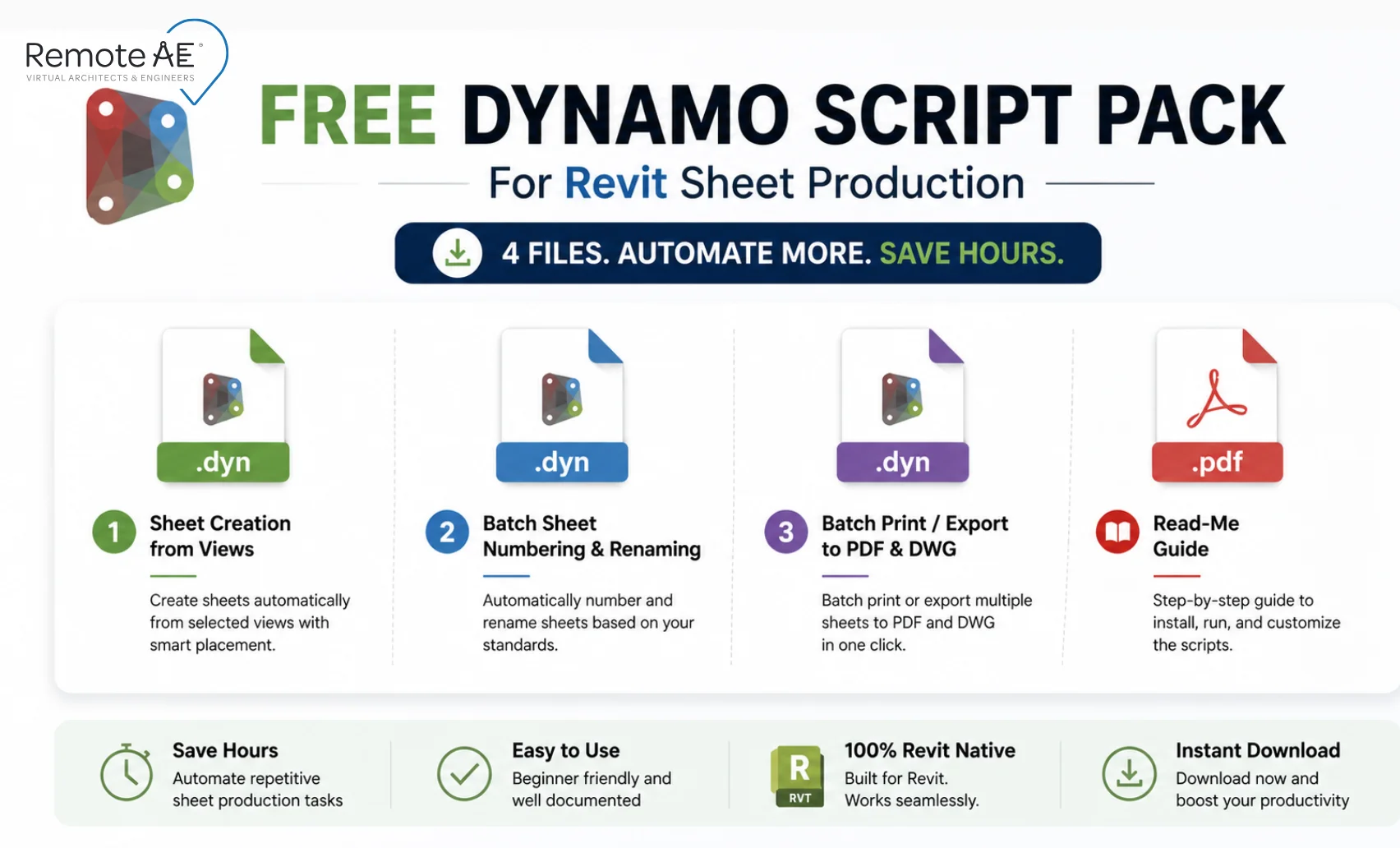
- 5 production-ready Dynamo scripts for Revit sheet work, sheet creation, batch renumbering, title-block parameters, PDF/DWG export, and revision tracking.
- Each runs from Dynamo Player, so juniors and PMs can use them without opening the Dynamo graph.
- A 200-sheet job that takes a week by hand drops to under an hour.
- Free download: a starter pack of the three most-requested scripts (sheet creation, batch renumber, batch PDF export), link below.
Script Index:
| # | Script | What it does | Time saved |
| 1 | Sheet creation from views | Builds sheets, names/numbers them, and places views | ~200 sheets in <1 hr |
| 2 | Batch numbering & renaming | Renumbers/renames in bulk from CSV or pattern | Phase shifts in one run |
| 3 | Title-block parameters | Pushes Drawn By / Issue Date to all sheets | 300 sheets in one batch |
| 4 | Batch print/export PDF-DWG | Exports filtered sets with naming rules | Hours per weekly issue |
| 5 | Revisions & issue tracking | Applies revisions across all sheets consistently | No manual drift |
Sheet production eats time: naming views, placing sheets, filling title blocks, exporting sets, and tracking revisions. Dynamo lets you turn those repeatable steps into buttons that anyone can run in Revit. When teams standardize this work, they cut rework tied to bad data and messy handoffs, drivers behind 48% of U.S. rework (PlanGrid + FMI). Dynamo Player makes scripts usable for non-coders with “Is Input” controls and presets (Autodesk Help; Dynamo resources). This guide outlines five field-tested script ideas, quick wins, and notes on scaling them for mid-to-large projects, plus a simple Player setup so PMs and juniors can run them safely.
Why Automating Sheet Production Matters
Sheet production in Revit often means repetitive, error-prone work. Consider renumbering 500 sheets after a phase shift from SD to DD. One wrong parameter or misnumbered sheet cascades through exports, submittals, and markups.
Key challenges:
- Manual entry leads to typos and mismatches.
- Hours lost updating title blocks, parameters, and revisions.
- Limited scalability when handling large project sets.
Automation with Dynamo provides:
- Speed: hundreds of sheets created or updated in minutes.
- Accuracy: consistent naming and parameter data across all deliverables.
- Standardization: templates aligned with ISO 19650 and firm CAD standards.
For large-scale AEC work, Dynamo is no longer optional. It’s the backbone of a repeatable Revit Dynamo sheet automation strategy.
Script #1 – Automatic Sheet Creation from Views
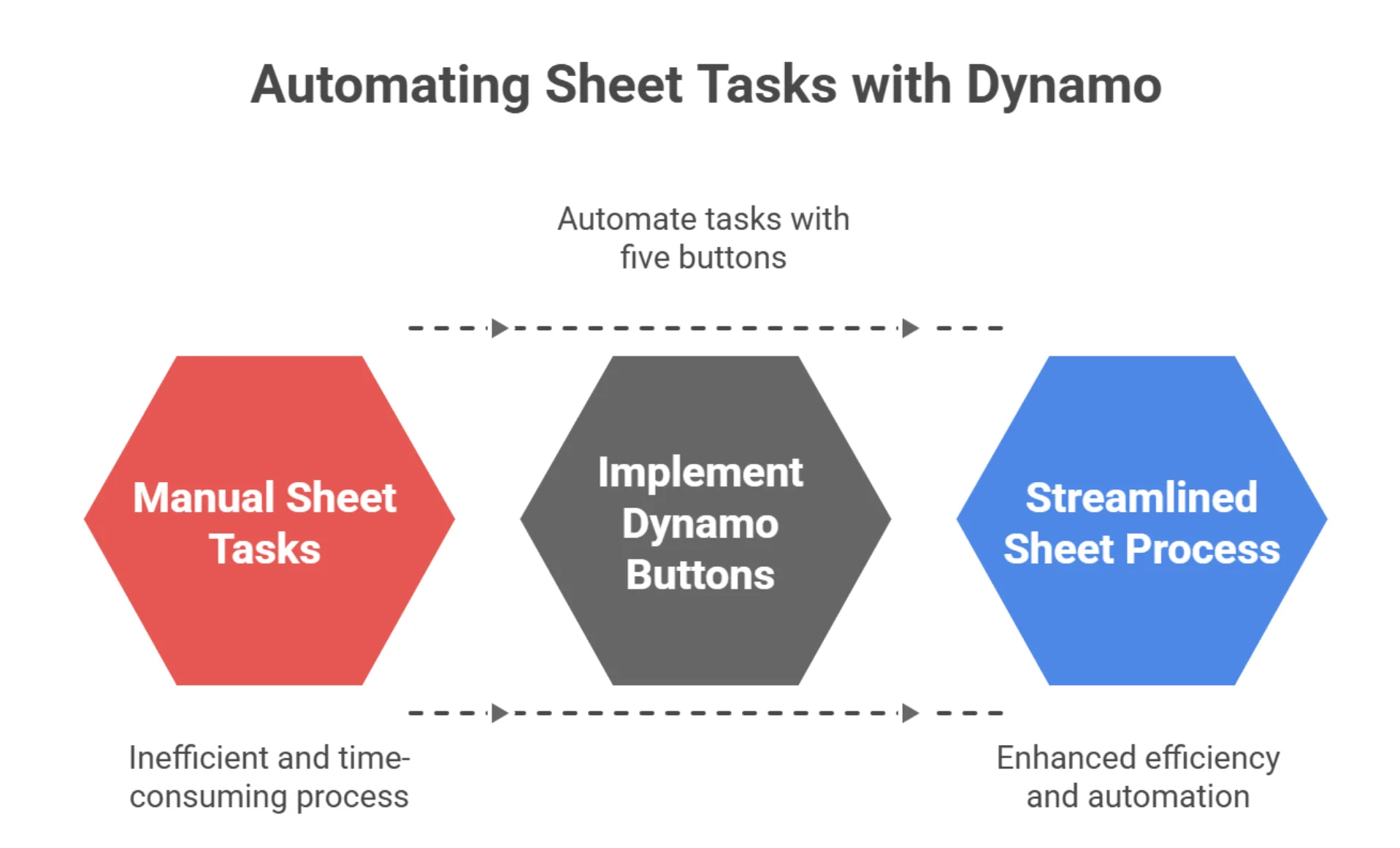
Creates sheets from selected views (plans, RCPs, elevations), sets the sheet name/number, applies a view template, and places the view on the sheet. View and sheet creation with consistent naming is a classic Dynamo time-saver flagged in AU handouts
How it works:
- Dynamo pulls data from a view list (plans, sections, elevations).
- The ViewSheet.ByNameNumberTitleBlock node creates sheets instantly.
- Data-Shapes UI nodes let users pick the right Title Block and control sheet naming rules.
Use Case: On a residential tower project, 200+ floor plan views are assigned to sheets in one run. What normally takes a week can be completed in less than an hour.
Bonus Tip: Store your script in Dynamo Player with input controls. This allows non-technical staff to run the workflow without editing the graph.
Script #2 – Batch Sheet Numbering and Renaming
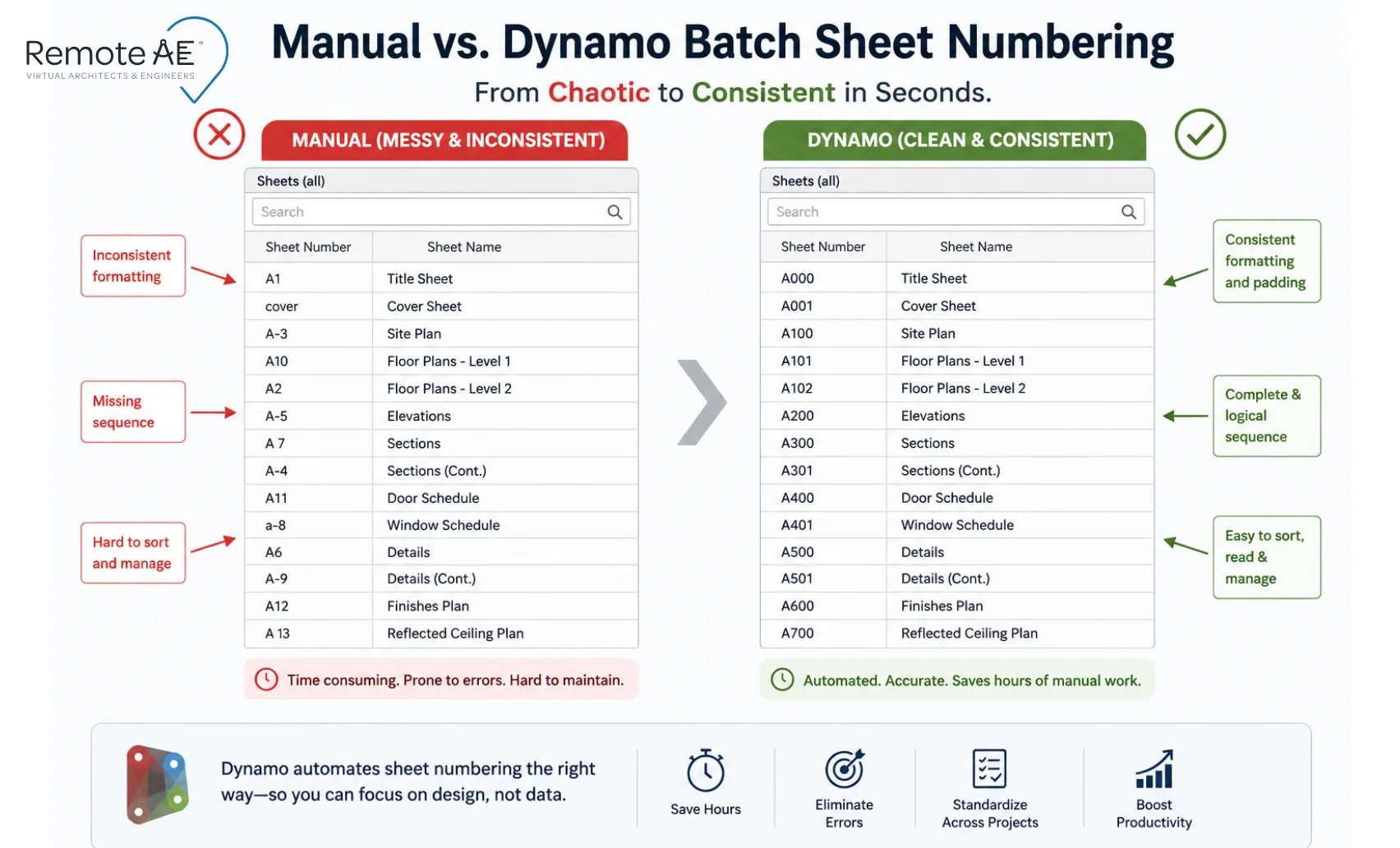
Renumbers and renames sheets in bulk from a CSV (or pattern), updates title-block parameters, and writes a change note. Renumbering by hand is slow and inconsistent. Dynamo turns this into a single controlled step; AU sessions cite naming/numbering automation as high-ROI documentation work.
How it works:
- BimorphNodes Sheet.RenumberRename node supports advanced renaming.
- Search-and-replace patterns can handle phase codes (SD → DD → CD).
- Scripts log conflicts when duplicate numbers occur.
Use Case: During a hospital project, all sheets are renumbered when moving from design to construction documents.
Benefits:
- Documentation consistency across CDEs like BIM 360.
- Clear audit trail for project managers.
- The Revit Dynamo renumber-sheets workflow ensures no manual rework later.
Script #3 – Title Block Parameter Management
Manual edits lead to mismatches and extra RFI chatter. A Dynamo graph can push consistent values to hundreds of sheets in minutes. Autodesk’s documentation shows how Dynamo and the Revit API read/write parameters safely in bulk.
Features of the script:
- Updates global parameters such as “Drawn By,” “Checked By,” and “Issue Date.”
- Supports batch updates for multiple parameters in one run.
- Logs changes so users can verify updates post-run.
How it works:
- Use nodes like Element.SetParameterByName to edit fields such as Issue Date, Project Number, Drawn By, or Checked By.
- Pair with Data-Shapes to allow user input via a form before running the update.
- Apply values to every Title Block family instance across the project.
Example: A consultant’s name changes mid-project. Instead of editing 300 sheets manually, Dynamo updates all title blocks in one batch.
Benefits:
- Eliminates contract document errors.
- Keeps compliance with AIA Contract Documents and internal QA/QC rules.
- Reduces revision turnaround from days to minutes.
Script #4 – Batch Print and Export to PDF/DWG
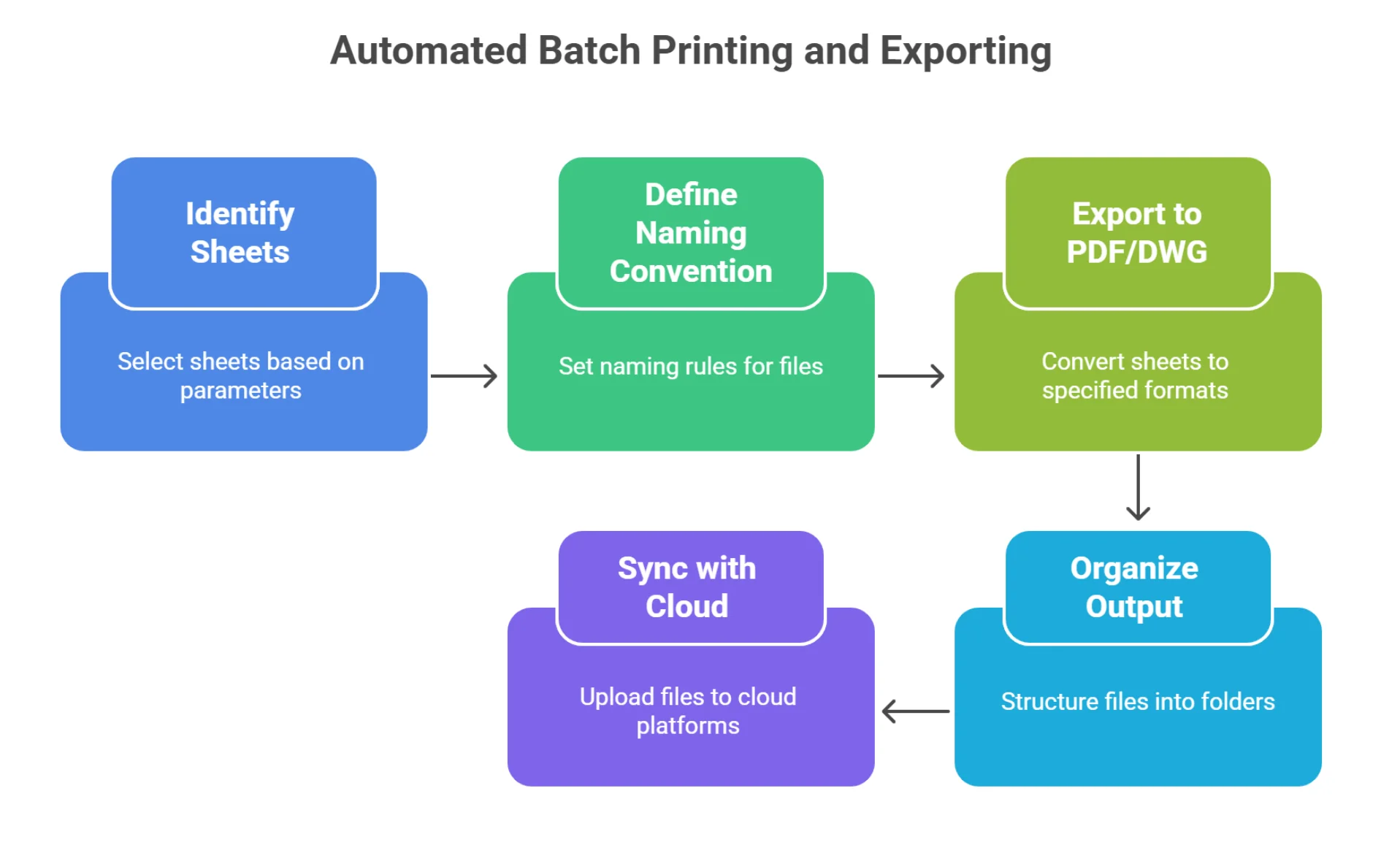
Another pain point in sheet production is repetitive exporting. Architects and engineers often need to issue weekly drawing sets to contractors. Exporting one sheet at a time is a bottleneck in project delivery. However, a Dynamo workflow automates batch printing to PDF or exporting to DWG, with correct file naming.
How it works:
- Select a print set or collect all sheets filtered by parameter (e.g., “Issue = Construction”).
- Define naming conventions: ProjectCode_SheetNumber_SheetName.pdf.
- Output structured folders that sync directly with Autodesk Docs or BIM 360.
Use Case: Weekly drawing issues for contractors in a design-build project.
Pro Tip: Pair Dynamo with Revit API or Python Script nodes for finer control over print settings and mixed sheet sizes.
Advantages:
- Saves hours every week during issue cycles.
- Reduces errors in file naming and placement.
- Supports smooth integration with CDEs for distribution.
Script #5 – Automated Revisions and Issue Tracking
Revisions drift when many hands touch the set. Revit’s revision system can be managed programmatically; Dynamo controls parameters on Revision and Sheet elements so every sheet gets the same description/date.
How it works:
- Collect all Revision and issue tracking elements across the model.
- Update Revision Number and Revision Description parameters.
- Link with Excel (XLSX) for structured issue logs.
Real-World Example: Structural and MEP consultants issue updates simultaneously. The Dynamo script applies revisions across all relevant sheets, ensuring aligned audit trails.
Compliance Angle:
- Builds reliable records for ISO 19650 information management.
- Provides transparent revision history for QA/QC.
- Synchronizes revision history across architectural, structural, and MEP sheets.
- Works with revision clouds for visual consistency.
Benefit: Teams avoid disputes during coordination, as revision accuracy is traceable and standardized.
How Much Time Each Script Actually Saves?
Across a typical mid-size project, these five scripts replace days of manual sheet handling with a handful of one-click runs. The exact savings depend on the set size, but the pattern is consistent. See the “script index” table above.
Beyond the Scripts: Customization for Firm Standards
Dynamo is a toolkit, not a one-size-fits-all button. You can tune each graph to your firm’s sheet numbering, title block, and layer/lineweight conventions.
- Firms can adjust numbering logic to fit the National CAD Standard (NCS) or internal BEP rules.
- Scripts can integrate with Excel (XLSX) for input, making it easy to drive parameters from consultant lists.
- BIM outsourcing teams can maintain libraries of Dynamo scripts for repetitive tasks, verifying that firms don’t have to reinvent the wheel for each project.
Where outsourced BIM specialists help.
- Maintain a curated Dynamo library across studios.
- Convert “hero” graphs into Dynamo Player one-click tools anyone can run.
- Review graphs quarterly against new Revit releases
Who maintains this?
The catch with a Dynamo library is upkeep: graphs break as Revit updates, naming standards evolve, and the person who wrote the “hero” script eventually moves on. This is the maintenance work that quietly eats senior modeler time, and the work a dedicated virtual engineering assistant can own, so your in-house team stays on design.
Remote staffing partners like Remote AE can support building, maintaining, and deploying these Dynamo libraries so in-house teams stay focused on design rather than tool maintenance.
How to Write a Script in Dynamo?
Dynamo is a visual programming tool inside Autodesk Revit. You don’t need to be a programmer to get started. The key is learning how to connect nodes that represent Revit elements and actions.
Steps to build a simple sheet automation script:
- Define input: Use a Data-Shapes form or Excel (XLSX) file as input. Example: sheet names and numbers.
- Collect elements: Use ViewSheet or Title Block nodes to target your sheets.
- Apply logic: Connect nodes that rename, renumber, or assign parameters.
- Run and review: Test on a copy of your model. Always keep a rollback option.
- Save as reusable script: Store in your team’s Dynamo library for future use.
Set up for Non-Power Users: Dynamo Player
Not every drafter or assistant needs to open the Dynamo interface. Dynamo Player simplifies automation into a one-click experience.
How Dynamo Player helps:
- Folder organization: Organize scripts into logical folders (sheet creation, numbering, printing).
- Inputs: Mark nodes as Is Input so users only see what they need to fill in.
- Presets: Save default values for recurring projects.
- Read-only safety: Users run scripts without risk of editing them.
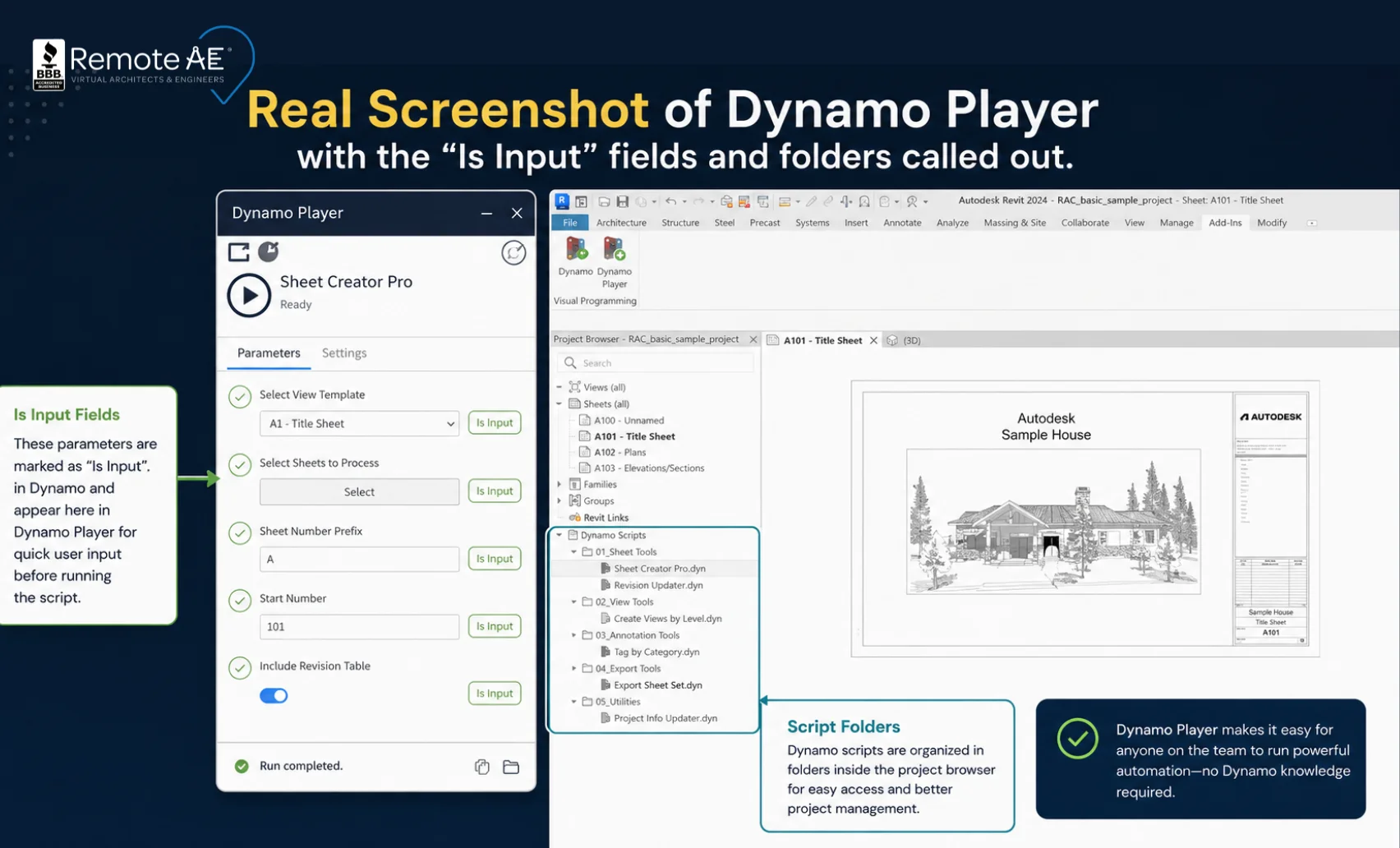
Example workflow: A project admin selects the “Batch PDF Export” script in Dynamo Player, chooses the sheet set, and clicks run. No coding knowledge required.
For firms with distributed teams, Dynamo Player is a bridge, allowing remote BIM assistants to run scripts confidently while keeping advanced script customization in the hands of specialists.
Ready to Scale Your Sheet Production Workflows?
Remote AE helps AEC firms cut hours of repetitive sheet tasks into minutes with Dynamo scripts, whether creating sheets from Excel, renumbering, or managing title block parameters. Our virtual construction assistants are trained in Autodesk Revit, Dynamo, and BIM 360, giving your team time to focus on design while we handle production at scale. Talk to us to discuss how we can support your next project.
Frequently Asked Questions
How do I run these without opening Dynamo?
Use Dynamo Player. It lets you run pre-built Dynamo scripts directly inside Revit without opening the Dynamo editor.
Can I place multiple views on one sheet with fixed positions?
Yes. You can automate view placement with scripts that use coordinate rules or grid templates, ensuring each view lands in the same spot across sheets.
What if a sheet number already exists?
Revit will flag a conflict. Good scripts include rename rules (e.g., add suffix/prefix) or prompts to avoid overwriting existing sheet numbers.
Are there trusted nodes for renumbering sheets?
Yes. Bimorph Nodes are widely used in the Dynamo community for reliable sheet renumbering and checking duplicates.
Any pitfalls when creating sheets from Excel?
Watch for:
- Mismatched title block families
- Duplicate sheet numbers
- Formatting errors in Excel headers
Always validate before batch-creating.
Do I need to know how to code to use Dynamo scripts?
No. Once a script is saved, it runs from Dynamo Player as a one-click tool. Only the person building or editing the graph needs Dynamo knowledge; drafters and PMs just pick the script, fill in the inputs marked “Is Input,” and run it.
Which Dynamo packages do these scripts rely on?
The examples here use Bimorph Nodes (sheet renumbering), Data-Shapes (user-input forms), and the standard Revit nodes that ship with Dynamo. All three are free and widely used in the Dynamo community.
Will these scripts work across different Revit versions?
Mostly, but node behavior can change between releases. The safe practice is to review your graphs against each new Revit version; one reason firms keep a maintained Dynamo library rather than one-off scripts