


Bringing on a remote architect assistant should feel structured, not ad hoc. Tight project schedules, talent shortages, and hybrid workflows have made remote architect assistants an essential part of modern practice. But hiring is only half the battle; effective onboarding determines if a remote assistant becomes productive in days or drifts for weeks.
This remote architect assistant onboarding guide walks AEC leaders through a structured remote architect assistant onboarding process, from security setup and BIM 360 access to Revit training and performance tracking. It blends ISO 19650-aligned workflows, Common Data Environment (CDE) protocols, and NCARB/AXP supervision best practices. The goal is fast, safe productivity, clean sheets, tighter turnarounds, and fewer revisits, so your team focuses on design while production runs smoothly.
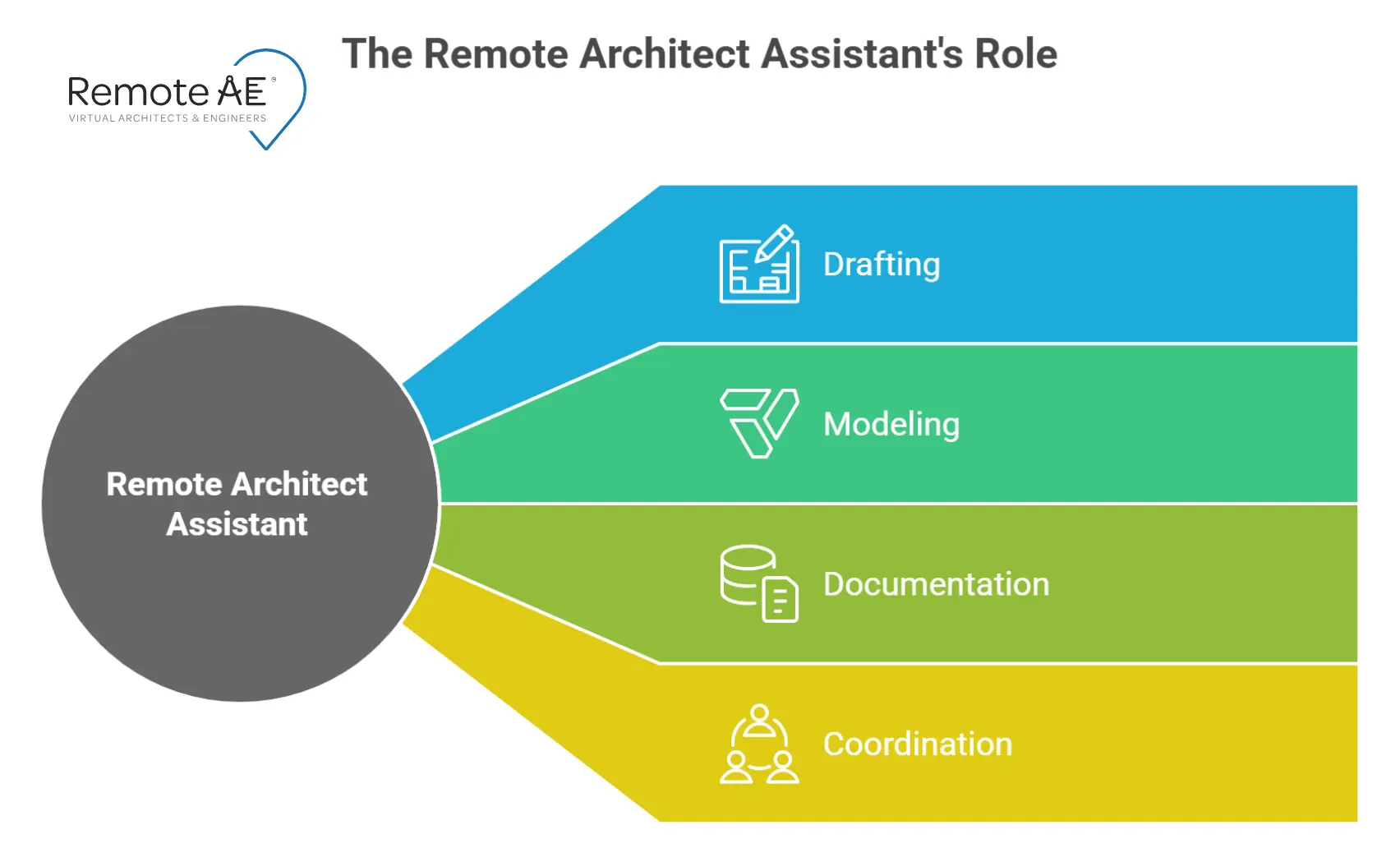
A remote architect assistant works as an extension of the project team, handling core drafting, documentation, and model coordination tasks under the supervision of a licensed architect or project lead. Their day-to-day scope often includes:
These assistants often access the Common Data Environment (CDE) following ISO 19650 permissions, ensuring correct role-based access (viewer, editor, approver).
Their work may touch sensitive project data and client PII, so firms use VPN, MFA, and NDAs to maintain compliance.
Common tools
AutoCAD, Revit, SketchUp, Bluebeam Revu, plus ACC/BIM 360 or Autodesk Docs for the CDE. Match software versions to avoid template drift.
Treat pre-boarding as a mini-project. Finish it before the first shift. This phase sets expectations, secures project data, and creates the foundation for smooth collaboration.
Confidentiality is critical in AEC outsourcing. Before granting access to your design files, make sure these are executed:
Your assistant’s productivity depends on quick, secure access to project tools. Prepare credentials before the first day:
When working under ISO 19650, assign permissions carefully: viewer, editor, approver, following the firm’s Common Data Environment (CDE) access matrix. This avoids accidental overwrites or exposure of restricted transmittals.
Establish secure access protocols from the start:
With Remote AE’s system, each assistant operates within least-privilege access levels, aligning with both ISO 19650 and NCARB supervision rules.
Write a one-page brief that names tasks, tools, and “done.” Include software versions, sheet list, and deadlines.
Example:
“Responsible for updating Revit construction sheets, issuing redline revisions, and managing model markups within Autodesk Construction Cloud.”
Document this in a role charter that outlines deadlines, deliverables, and review cycles.
Remote collaboration thrives on structured communication.
Define response times, escalation procedures, and after-hours communication rules early in the process.
Give the Standards folder: title blocks, view templates, shared parameters, naming rules, and a “gold” sheet. Record a 10-minute Loom walking through sheet creation, view placement, and publish steps. Explain how you track markups (Bluebeam Sessions or ACC Issues).
Before assigning tasks, confirm all software and security settings are in place:
Integrate the assistant’s account and link it to specific projects if you use Harvest or Toggl for time tracking.
Remote AE ensures every assistant works within your data governance framework, maintaining compliance while staying productive.
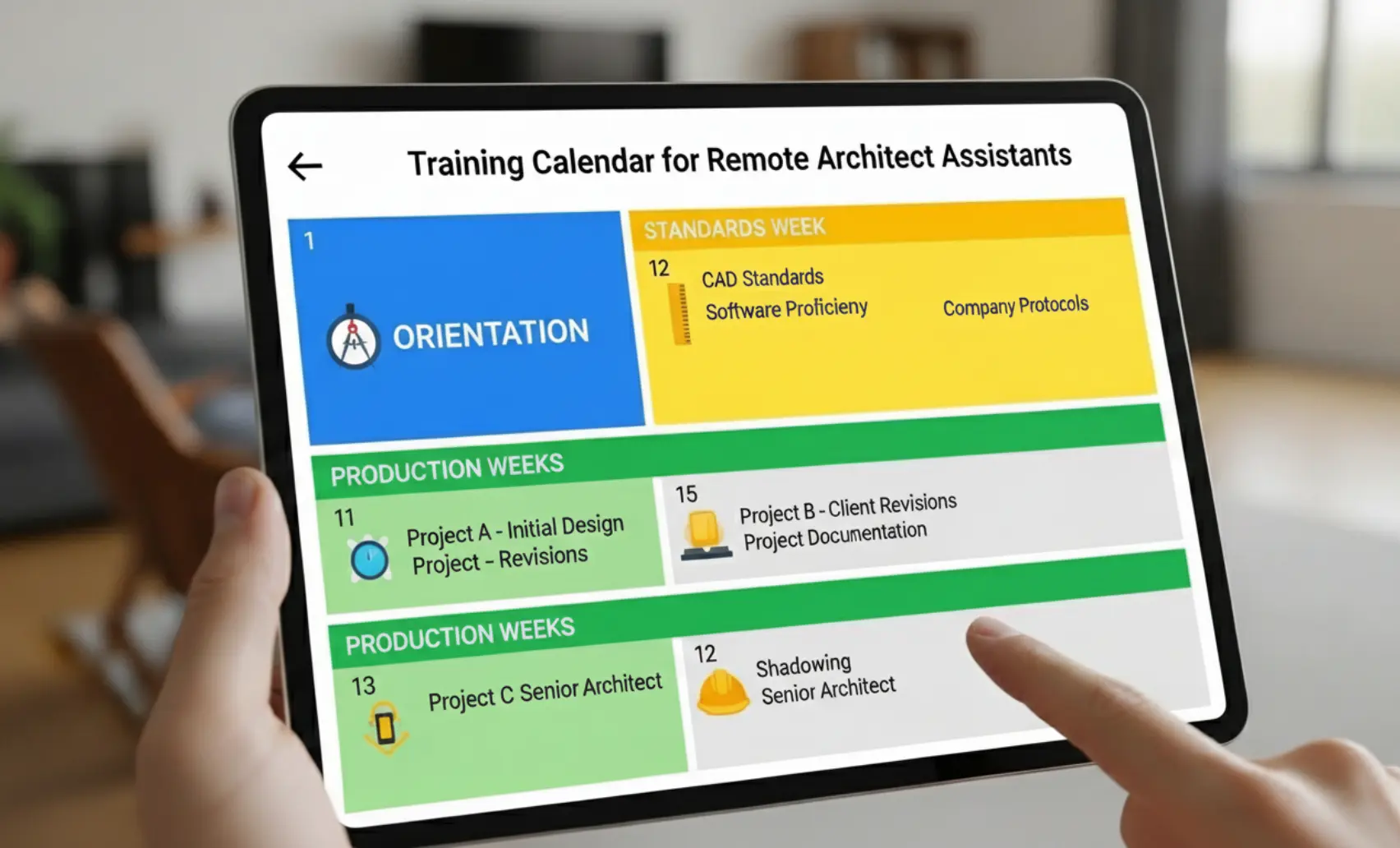
First week: the assistant shadows a live task and mirrors it on a sandbox file. Hold two short reviews per week (15 minutes each). Use a simple “What went well / Risks / Next steps” format.
This approach mirrors the AXP remote supervision model, guiding assistants while helping licensed architects stay compliant with NCARB’s mentorship requirements.
Documented processes are your insurance for smooth scaling. Keep:
Follow this sequence for better virtual architect assistant training:
By the end of the first month, a well-onboarded remote architect assistant should be confidently managing drafting, coordination, and documentation tasks under your firm’s supervision.
Even with a strong plan, firms often face hurdles during the remote architect assistant onboarding phase. Knowing these in advance helps you prevent slowdowns and frustration.
Problem: Each architecture firm has its own layer naming, dimension styles, and sheet formatting. A remote assistant may unknowingly apply different standards.
Fix: Provide a sample drawing set and your firm’s Revit template before the first task. Include a short Loom video walkthrough of your title blocks, view templates, and sheet naming patterns. Run a 10% sheet audit before any publication.
Problem: Work schedules may not overlap, delaying reviews and feedback.
Fix: Set a 2–3 hour overlap; park blockers on a board. Use a red “needs decision today” label.
Problem: Unclear or delayed communication leads to rework.
Fix: Use daily 15-minute huddles and end-of-day reports summarizing tasks completed, blockers, and next steps. Slack or Teams channels can host quick clarifications without disrupting workflow.
Problem: Using different software versions or unmanaged file paths can corrupt Revit files.
Fix: Work within a cloud-managed environment (Autodesk Construction Cloud or BIM 360) with automatic version control and backups.
Onboarding success isn’t about how fast a new assistant logs in; it’s how quickly they start delivering value.
KPIs to watch
How to review?
Do a quick weekly review with the PM and assistant. Use a one-page scorecard showing KPIs, blockers, and next steps. Update the SOP when patterns appear.

Remote AE has over 15 years of experience supporting architecture and construction firms worldwide. We provide pre-vetted architect assistants trained in Revit, BIM coordination, and ISO 19650 workflows.
Each assistant joins your team with access to a dedicated project manager who oversees onboarding, time tracking, and quality compliance.
Even if you’re a small studio handling overflow or a multi-office firm scaling fast, Remote AE provides a smooth start, from NDAs to Autodesk access and continuous workflow support.
Hiring doesn’t need to slow down your projects. With Remote AE, you can onboard trained remote assistants within days, already familiar with Revit, BIM 360, and architectural documentation workflows. We handle sourcing, training, and compliance, while you focus on design and delivery. Contact Remote AE today to discuss your firm’s needs and get matched with a vetted remote architect assistant ready to contribute from day one.
Give project-level access only. Assign the Project Member or Contributor role, enough to upload sheets, edit markups, or manage RFIs without full admin rights. Keep sensitive folders (e.g., contracts, finances) restricted to internal users. Use audit logs to track all actions.
Every assistant should sign an NDA before access. It must cover project data, drawings, client details, and duration of confidentiality. Data should stay within approved CDEs like Autodesk Docs or Procore. No files should be downloaded or shared outside the controlled environment.
Yes. NCARB allows remote supervision if the architect maintains regular contact and reviews work directly. Meetings via Teams or Zoom and tracked task logs satisfy supervision requirements. The architect must still be licensed and actively oversee design-related decisions.
Start with Revit for modeling and sheet production, then move to Autodesk Construction Cloud (ACC) for collaboration. Learn Bluebeam Revu for markups and AutoCAD for 2D support. These cover 90% of daily architectural workflows in remote and hybrid teams.
Other articles you may like:

