
Poorly named files cost AEC teams more than frustration. PlanGrid and FMI estimated that poor project data and miscommunication accounted for more than $31.3B in U.S. rework. For remote teams, the problem compounds fast. When files move across time zones, platforms, and disciplines without a consistent naming standard, wrong revisions get built from, submittals get misfiled, and RFIs stall. This article delivers a practical, ISO 19650-aligned AEC file-naming convention that your remote team can implement immediately, with real examples across BIM, CAD, PDFs, and document control workflows.
Why File Naming Breaks Faster on Remote AEC Teams
On a co-located team, someone can walk across the office and ask which drawing is current. On a remote team, that question becomes an email thread, a delayed response, and a decision made from the wrong file.
The Real Cost of Vague Names, Duplicate Files, and Wrong Revisions
A filename like ArchDrawing_FINAL_v2_REVISED.dwg tells you almost nothing useful. It doesn’t tell you which project, which discipline, which level, or whether it’s been issued for construction or is still in review.
When a remote engineer opens the wrong revision, because the naming gave no clear signal, the downstream cost isn’t just a wasted hour. It’s a coordination clash that gets built into the model, a submittal that gets rejected, or an RFI that gets raised for something already resolved in a later revision.
The compounding problem: On remote teams, bad naming decisions multiply across every handoff. One vague filename becomes ten people working from inconsistent references across three time zones before anyone catches the discrepancy.
Why Remote Handoffs Make Naming Rules More Important, Not Less
Co-located teams compensate for weak naming through proximity, verbal confirmations, shoulder taps, and shared screens. Remote teams have none of those fallbacks.
Every file handoff in a remote document control workflow must be self-explanatory. The filename itself must communicate project, discipline, revision status, and document type, because there is no one standing next to the recipient to clarify.
This is why AEC file naming conventions are not an administrative preference for remote teams. They are a coordination infrastructure requirement. A well-structured Common Data Environment (CDE) without an enforced naming standard is just a well-organized room full of unlabeled boxes.
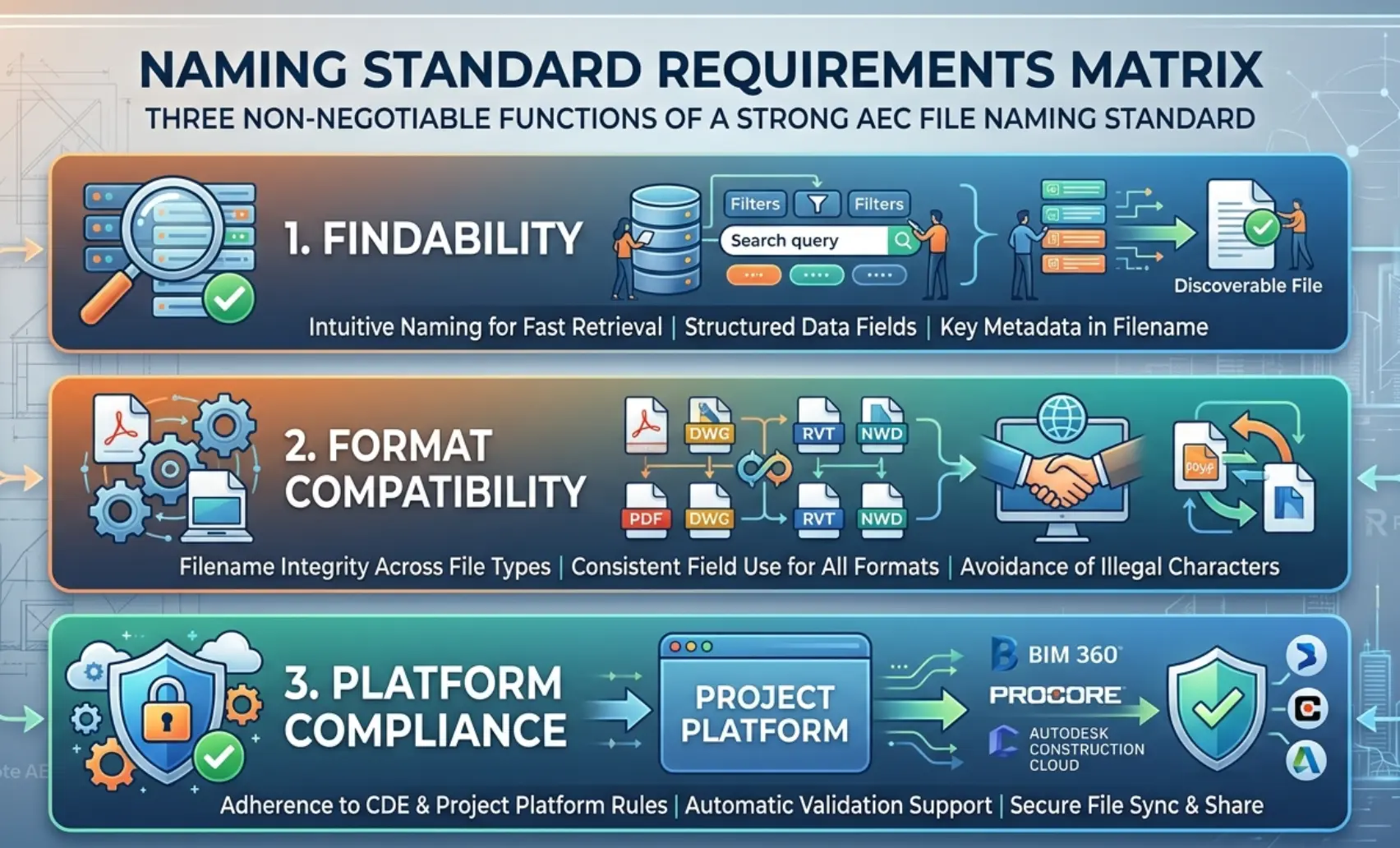
What a Good AEC Naming Standard Needs to Do
Before choosing a naming format, be clear on what the system must actually deliver. A naming convention that works for one firm’s needs but fails on another’s platform is not a standard; it’s a local workaround.
Make Files Easy to Find, Sort, Review, and Audit
A strong AEC file naming standard makes files sortable by project, discipline, document type, and revision, without opening a single file. When a document controller audits a submittal register or a BIM manager reviews a model coordination folder, the filename alone should answer the key questions.
- Which project does this belong to?
- Who produced it?
- What discipline and document type is it?
- What revision is this, and what is its current status?
If the filename can’t answer all four questions at a glance, the standard isn’t complete.
Work Across BIM, CAD, PDFs, Submittals, and Meeting Records
A naming convention that only works for Revit model files fails the moment a PDF issue set, a submittal transmittal, or an RFI response enters the same folder structure.
The standard must apply consistently across every file type the team produces, BIM models, CAD drawings in DWG format, PDF issue sets, submittal packages, RFI logs, and meeting minutes. One naming system. No file-type exceptions.
Stay Compatible With ISO 19650, U.S. CAD Standards, and Cloud Storage Limits
ISO 19650 defines the information management framework for BIM, including a structured approach to file naming that covers originator, discipline, spatial breakdown, functional breakdown, revision, and status/suitability fields.
U.S. CAD standards, including the National CAD Standard, define discipline codes and drawing type abbreviations widely used across American AEC practice.
Cloud storage platforms impose their own constraints. SharePoint has a 400-character path limit and rejects certain special characters. OneDrive blocks files with names containing \ / : * ? ” < > |. Autodesk Construction Cloud / Autodesk Docs has its own metadata and naming validation rules.
A robust AEC file naming convention accounts for all three layers, international standards, national CAD practice, and platform character limits, before a single file is named.
Core Principles of a Strong File Naming System
Before building your template, lock in these five principles. They apply regardless of which naming format your firm adopts.
Keep It Predictable
Every file on every project follows the same structure. No exceptions for “quick” files, personal working copies, or discipline-specific variations.
- Same field order across all projects and all file types
- No guesswork about what goes where, the structure is defined in the BEP and enforced from day one
- Predictability is what makes naming scalable. A remote assistant joining a project in week six should be able to name files correctly without asking anyone
Make It Searchable
Your naming convention must reflect how people actually search, not how a filing system was theoretically organized.
- Use discipline codes, document types, and level references that match the search terms your team types into Autodesk Docs, SharePoint, or OneDrive
- Avoid vague terms; “final,” “latest,” “new,” “revised,” and “updated” carry zero searchable information and create dangerous ambiguity in document control workflows
- Front-load the most distinctive fields, project code, and discipline, so sorted file lists group logically without manual filtering
Keep It Short: But Complete
Filename length is a real constraint. SharePoint enforces a 400-character total path limit. OneDrive rejects paths exceeding 260 characters. Long filenames that push folder paths over these limits cause sync failures on remote teams using cloud storage.
- Target filenames under 60 characters where possible
- Every field in the name must earn its place; if it doesn’t help find, sort, or audit the file, remove it
- Short titles within the filename should be abbreviations, not full descriptions
Avoid Special Characters
Special characters break file paths, corrupt hyperlinks, and trigger sync errors across SharePoint, OneDrive, and Autodesk Construction Cloud.
Banned characters in AEC filenames: \ / : *? ” < > | # % & { } ~ @
Use only:
- Hyphens (–) as field separators
- Underscores (_) within a field where a space would otherwise appear
- Alphanumeric characters — letters and numbers only within each field
Use Consistent Date and Version Formats
Date and version inconsistency is one of the most common naming failures on remote AEC teams, and one of the easiest to prevent.
- Always use YYYYMMDD format for dates; it sorts chronologically in every file browser and platform without custom configuration. Example: 20240915 not 15-Sept-24 or 9/15/24
- Always use zero-padded version numbers – V01, V02, V03 – not V1, V2, or “version 3 final”
- Never mix date formats across file types, one project, one format, enforced in the BEP from kickoff
Standard Components of AEC File Names
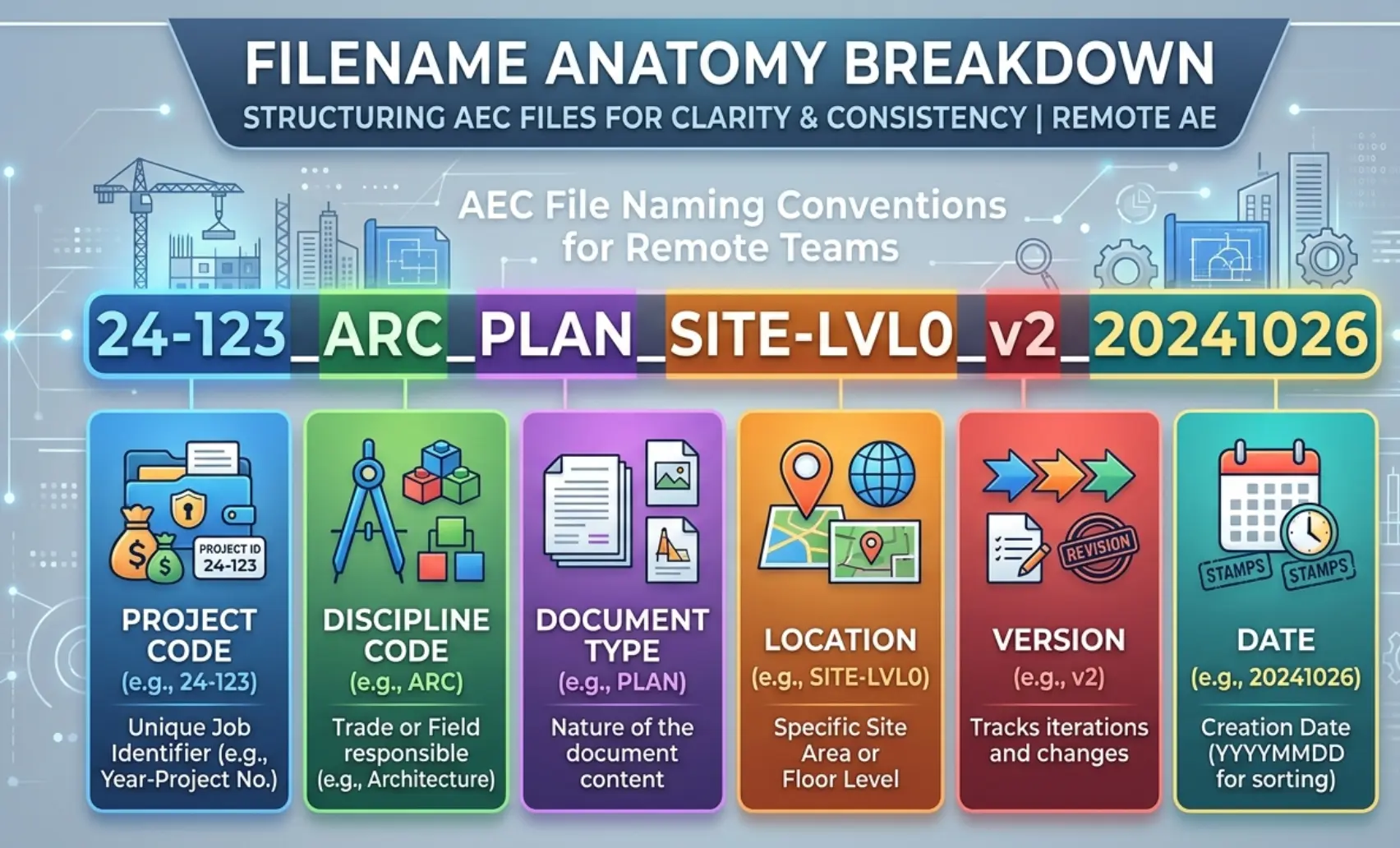
These six fields form the structural backbone of any robust AEC file naming convention. Each field carries specific information. Together, they make every filename self-documenting.
1. Project Code
The project code is the unique identifier that ties every file to a specific project, regardless of where it’s stored or who produced it.
- Format: alphanumeric, typically three to six characters, PRJ001, NYC-045, 2024-HOS
- Assigned at project kickoff and documented in the BEP
- Must be unique across the firm’s full project portfolio; reusing codes across closed and active projects creates retrieval confusion in document control archives
2. Discipline Code
The discipline code identifies which trade or team produced the file.
Standard discipline codes used across AEC practice:
| Code | Discipline |
| ARC | Architecture |
| STR | Structural |
| MEP | Mechanical, Electrical, Plumbing |
| CVL | Civil |
| INT | Interiors |
| LAN | Landscape |
| MGT | Project Management / General |
Align discipline codes with your EIR requirements and the ISO 19650 originator field where applicable. Consistency across the CDE is non-negotiable for remote document control.
3. Drawing or Document Type
The document type field identifies what the file contains, not which discipline produced it.
Common document type codes:
- PLAN: Floor plan or site plan
- ELEV: Elevation
- SECT: Section
- DTL: Detail
- RFI: Request for information
- SUB: Submittal
- SPEC: Specification
- RPT: Report
- MIN: Meeting minutes
4. Location or Level
The location field pinpoints where in the building or site the file applies.
- Floor references: FLR01, FLR02, BSMT, ROOF
- Site zones: SITE, ZONE-A, ZONE-B
- Building references on multi-building projects: BLD-A, BLD-B
For ISO 19650 compliance, this field maps to the spatial breakdown component, the hierarchical location reference that places a file within the project’s physical structure.
5. Version Number
Version numbering tracks the revision history of every file, and it must be zero-padded for correct alphanumeric sorting.
- Working versions: V01, V02, V03
- For ISO 19650 compliance, pair the version number with a status/suitability code; more on this in H2 #6
- Never overwrite a previous version. Every revision gets a new version number. The CDE maintains the full history; the filename makes that history readable at a glance
6. Date: Optional but Useful
The date field is optional in the core naming template but recommended for submission documents, approval records, and issued-for-construction sets.
- Format: YYYYMMDD – always
- Most useful on: submittal transmittals, RFI responses, meeting minutes, and PDF issue sets where the issue date carries contractual significance
- Least necessary on: active working BIM and CAD model files where the CDE version history captures date metadata automatically
The Standard Template: A Simple Format Remote Teams Can Actually Follow
Recommended Default Template
[ProjectCode]-[Discipline]-[ZoneOrLevel]-[DocType]-[ShortTitle]-[Status]-[Rev]-[YYYYMMDD]
This structure covers the core information fields every AEC file needs, in an order that sorts logically, reads clearly, and stays compatible with Autodesk Construction Cloud, SharePoint, and OneDrive character rules.
Which Fields Are Required vs Optional
| Field | Required | Optional |
| Project Code | ✅ | |
| Discipline | ✅ | |
| Zone or Level | ✅ | |
| Document Type | ✅ | |
| Short Title | ✅ | |
| Status / Suitability | ✅ | |
| Revision | ✅ | |
| Date | ✅ |
Date is optional for working model files. It becomes required for all issued, submitted, or approved documents where the issue date carries contractual or coordination significance.
Character Rules
- Field separator: hyphen only (–)
- Within-field separator: underscore (_) where needed
- No spaces anywhere in the filename
- No special characters, letters, or numbers only
- Maximum recommended filename length: 60 characters excluding file extension
- File extension always lowercase: .rvt, .dwg, .pdf
Examples by File Type
The naming template applies consistently across file types, but each type has specific conventions worth noting. Here’s how the standard works in practice across the documents your team produces daily.
Revit and CAD Model Files
Model files are the highest-risk files in any AEC project; wrong revision, wrong consequences.
Revit model files:
PRJ001-ARC-FLR00-MODEL-SHELL-WIP-V04.rvt
PRJ001-STR-ALL-MODEL-FRAME-IFC-V02.rvt
PRJ001-MEP-FLR03-MODEL-HVAC-S1-V01.rvt
CAD DWG files:
PRJ001-CVL-SITE-PLAN-GRADING-WIP-V03.dwg
PRJ001-STR-FLR01-DTL-CONN-PLATE-IFC-V01.dwg
PRJ001-ARC-FLR02-PLAN-PARTITIONS-WIP-V05.dwg
Key rule for BIM and CAD model files: never include the date field in working model filenames. The CDE version history captures date metadata automatically. Adding dates to model filenames creates dual version tracking that diverges over time and confuses document control.
Sheets, Drawing PDFs, and Issue Sets
Issued drawing sets carry contractual weight. The filename must confirm issue status and date unambiguously.
PRJ001-ARC-FLR01-PLAN-LAYOUT-IFC-V02-20240915.pdf
PRJ001-STR-FLR02-ELEV-CORE-WALL-IFC-V01-20240920.pdf
PRJ001-MEP-BSMT-PLAN-DRAINAGE-IFC-V03-20241001.pdf
PDF naming rules:
- Always include the date field on issued PDFs; the issue date is a contractual record
- Match the PDF filename to the source Revit or DWG filename, same project code, discipline, level, and document type, with .pdf extension replacing .rvt or .dwg
- Never name a PDF set generically. DrawingSet_Final.pdf tells a document controller nothing and breaks every audit trail the CDE maintains
Submittals, RFIs, Meeting Minutes, and Markups
These document types sit outside the model workflow but inside the same naming standard.
Submittals:
PRJ001-MEP-FLR04-SUB-FCU-UNIT-APPD-V01-20240901.pdf
PRJ001-STR-FLR01-SUB-REBAR-SCHED-REVW-V02-20240825.pdf
RFIs:
PRJ001-MGT-SITE-RFI-DRAINAGE-OUTFALL-RESP-V01-20240822.pdf
PRJ001-ARC-FLR03-RFI-CEILING-HEIGHT-OPEN-V01-20240910.pdf
Meeting minutes:
PRJ001-MGT-ALL-MIN-COORD-WK38-V01-20240918.pdf
PRJ001-MGT-ALL-MIN-DESIGN-REVIEW-V01-20240925.pdf
Markups:
PRJ001-ARC-FLR02-MKP-REDLINE-PARTITIONS-V01-20240930.pdf
Folder Names vs File Names: What Belongs Where
A common mistake is trying to encode all project metadata into the filename, resulting in 90-character strings that exceed platform limits and become unreadable.
Folder names carry:
- Project phase – 01_Schematic, 02_Design_Development, 03_Construction_Docs
- Discipline – ARC, STR, MEP
- File type category – Models, Sheets, Submittals, RFIs, Reports
File names carry:
- Specific project code, discipline, level, document type, title, status, revision, and date
The folder structure provides context. The filename provides identity. Neither should duplicate the other’s job. In Autodesk Construction Cloud and Autodesk Docs, platform metadata fields, project, phase, and discipline further reduce the burden on the filename itself.
How to Roll This Out Across a Remote Team
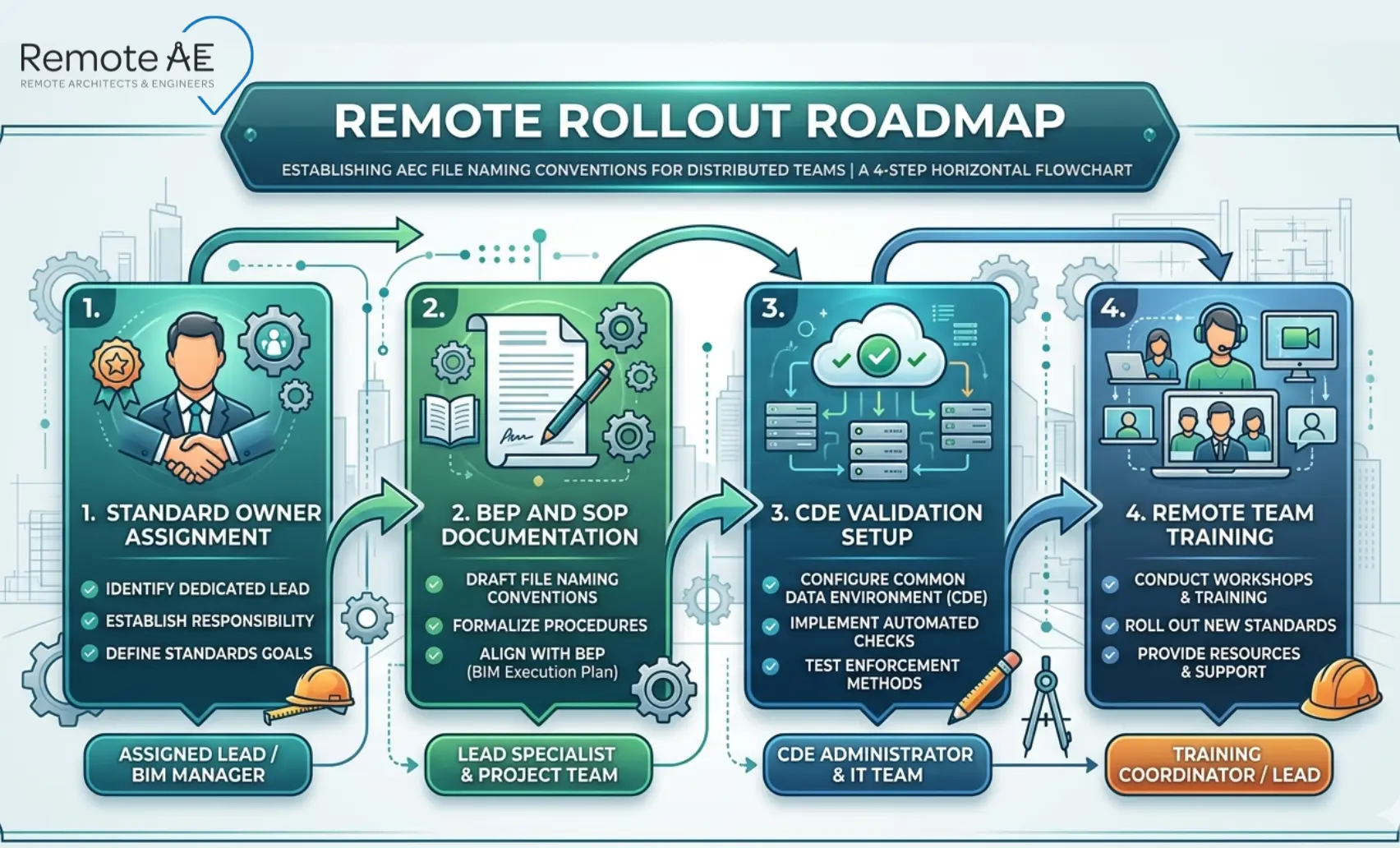
A naming standard that lives in a document no one reads is not a standard; it’s a policy. Here’s how to make it operational across a distributed AEC team from day one.
Assign One Owner for the Standard
Every naming standard needs a single accountable owner, not a committee, not “the team.”
- On most projects, this is the document controller or BIM manager
- On remote teams without a dedicated document controller, assign ownership to the project lead or the virtual construction assistant managing the CDE
- The owner’s responsibilities: maintain the naming register, approve exceptions, audit compliance weekly, and update the standard when new file types are introduced
Without a named owner, naming standards drift within weeks. With one, they hold across the full project lifecycle.
Put the Rules in the BEP, SOP, and Onboarding Checklist
The naming convention must appear in three places to be enforced effectively:
- BEP (BIM Execution Plan): The contractual home for naming rules on BIM projects. Clients, contractors, and consultants all sign off on the BEP, which makes naming compliance a contractual obligation, not a preference
- SOP (Standard Operating Procedure): Your firm’s internal reference document. Covers the full naming template, field definitions, status codes, and platform-specific rules for SharePoint, OneDrive, and Autodesk Docs
- Onboarding checklist: A single-page reference that every new team member, remote assistant, consultant, or freelance contributor receives on day one before accessing the CDE
If the rules aren’t written down in all three places, they exist only in the memory of whoever set them up. That’s a single point of failure on any remote team.
Use QA Checks and Naming Validation Inside Autodesk Docs or Your CDE
Manual naming compliance is unreliable at scale. Automate validation wherever your CDE allows.
- Autodesk Construction Cloud / Autodesk Docs: Supports folder-level naming rules and metadata validation. Configure required metadata fields, discipline, document type, and status. So files without complete metadata cannot be published to the shared environment
- SharePoint: Use column validation rules in document libraries to flag files that don’t match naming patterns. Power Automate flows can reject uploads that fail naming checks and notify the document controller automatically
- OneDrive: Limited native validation, compensated with a weekly naming audit run by the document controller or virtual construction assistant managing the folder structure
Automated validation catches errors at upload, before a wrongly named file gets referenced in a coordination model or a submittal register.
Train Remote Assistants, Consultants, and Freelance Contributors on the Same Rule Set
Every person who touches a file in your CDE must follow the same naming standard, regardless of their employment status, location, or role.
Training checklist for remote team members:
- Review the naming template and field definitions before accessing the CDE
- Complete two to three practice naming exercises using real project file types
- Confirm understanding of status codes, WIP, IFC, APPD, and VOID, before handling any issued documents
- Know the escalation path for naming exceptions, who to ask, not how to improvise
- Sign off on the SOP as part of the onboarding NDA and access approval process
Virtual construction assistants managing document control on behalf of AEC firms need particular depth here; they are often the last checkpoint before files reach the CDE. Their naming accuracy directly determines the integrity of the project’s document record.
How Remote AE Teams Implement Naming Standards at Scale
Remote AE has been providing virtual construction assistants tailored for the AEC industry for more than 15 years. Document control, including AEC file naming convention setup, enforcement, and ongoing compliance management, is one of the core services remote assistants deliver across architecture, engineering, and construction firms globally.
Here is the five-step implementation process Remote AE uses to deploy and maintain naming standards across distributed AEC teams.
Step 1: Audit Current File Structure
Before building a new naming standard, understand what exists. A Remote AE virtual assistant conducts a full audit of the current CDE, identifying inconsistent naming patterns, duplicate files, unversioned documents, and folder structures that conflict with the intended standard.
Step 2: Define Naming Rules
Using the audit findings, the Remote AE team works with the firm’s BIM manager or document controller to define the project-specific naming standard, selecting field structures, discipline codes, status codes, and character rules aligned with ISO 19650, the EIR requirements, and the firm’s CDE platform.
The defined standard is documented in three deliverables:
- A naming convention register — the master reference document
- A BEP naming section — ready for client sign-off
- A one-page quick reference card — for remote team onboarding
Step 3: Roll Out Template Across Teams
The naming template is deployed across the CDE, folder structure configured, metadata fields activated in Autodesk Docs or SharePoint, and naming validation rules applied where the platform supports automation.
Existing files requiring renaming are processed in batches, highest-risk documents first, working backward through the project archive. Remote AE assistants handle bulk renaming without disrupting active project workflows.
Step 4: Train Staff and Virtual Assistants
Every team member, in-house staff, remote consultants, and virtual construction assistants, receives the same training package before accessing the updated CDE.
Step 5: Monitor and Enforce Compliance
Naming standards degrade without active monitoring. Remote AE virtual assistants run weekly CDE audits, checking for non-compliant filenames, flagging violations, and correcting errors before they propagate through the document register.
Monthly compliance reports give project leads visibility into naming health across all active projects, with trend data showing whether compliance is improving or slipping.
Remote AE engagement terms:
- Industry-specific expertise – virtual assistants trained in AEC document control workflows, ISO 19650 naming standards, and CDE platform administration from day one
- Guaranteed quality and reliability – naming compliance maintained to your defined standard, or issues resolved immediately
- No long-term commitment – engage on a project basis or as an ongoing document control resource
- Staffing from $499/week – accessible for firms managing single projects or full project portfolios
Build a Naming Standard Your Remote Team Will Actually Follow!
A consistent AEC file naming convention is the foundation of every functional document control system, and the first thing that breaks when remote teams scale without structure.
Remote AE places pre-vetted virtual construction assistants trained in ISO 19650 naming standards, Common Data Environment administration, and document control workflows across Autodesk Construction Cloud, Autodesk Docs, SharePoint, and OneDrive, ready to audit, implement, and maintain your naming standard from week one.
Stop losing coordination time to wrong revisions, duplicate files, and broken document control.
Book a Free Consultation with Remote AE Today, no obligation, no pressure. Just a direct conversation about what your document control workflow needs right now.
FAQs – AEC File Naming Conventions for Remote Teams
What should be included in an AEC file naming convention?
A solid convention includes project code, originator, discipline, level/location, file type, and a unique number, plus a revision or status tag. Keep it readable and consistent. The goal is quick identification without opening the file, especially when working across teams and platforms.
What is the best file naming format for remote architecture and engineering teams?
Use a structured pattern like:
Project–Originator–Discipline–Level–Type–Number–Revision
Example: PRJ01-ARC-L02-DR-A101-R02
This format aligns with ISO-style logic and works well across Revit, CAD, PDFs, and cloud platforms, making remote coordination easier.
Is ISO 19650 required for U.S. AEC firms?
No, it’s not mandatory in most U.S. projects. However, many firms adopt ISO 19650 principles for consistency, especially on large or international projects. Even when not required, following its structure improves file control, collaboration, and scalability.
Should folder structure and file naming follow the same logic?
Yes. Folder structure and naming should mirror each other logically, for example, discipline and project phases. This reduces confusion and makes it easier to locate files, whether you’re browsing folders or searching by name.
Who should own file naming standards on a remote AEC team?
Typically, a BIM manager, document controller, or project lead owns the standard. They define rules, enforce compliance, and update conventions when needed. Clear ownership prevents drift and keeps remote teams aligned.