

Navisworks remains the most capable coordination platform in AEC, but most remote teams use only a fraction of what it offers. Fragmented file management, inconsistent clash workflows, and untouched TimeLiner setups leave significant coordination value on the table.
This article gives distributed BIM coordination teams a complete operational guide, from building a trusted federated model to running structured Clash Detective workflows and 4D simulation sequences. Even if you’re a VDC manager rebuilding your remote process or a remote engineering assistant taking ownership of weekly coordination, every section delivers steps you can act on immediately.
Why Remote Teams Struggle with Coordination in AEC Projects
Remote BIM coordination isn’t harder because of distance. It’s harder because most teams never built the right infrastructure for co-located work, either, and distance exposes every gap.
Three problems surface consistently across distributed AEC projects.
- Fragmented communication across time zones turns coordination into a relay race. A clash flagged at the end of the day in one time zone sits unresolved until the next morning in another. Without structured handoff protocols, issues compound faster than reviews can clear them.
- Multiple file formats create compounding inconsistencies. A federated model pulling from Revit, IFC, and DWG sources will drift if each discipline team manages its own export cadence. One outdated NWC cache from the structural engineer corrupts every clash test that touches that model.
- Version control failures are the most costly problem and the most preventable. When team members work from locally saved NWD snapshots instead of a shared NWF hosted in Autodesk Construction Cloud or BIM 360, clash results stop reflecting the actual design state.
Direct + indirect rework has been estimated in literature reviews to total roughly ~7.25% to 10.89% of construction cost (with a median around 9.07%) when indirect impacts are added to direct rework.
Why Navisworks Still Works Well for Remote AEC Coordination
Navisworks isn’t new, but it remains the coordination standard in AEC for one reason: no other platform aggregates multi-discipline models, runs rule-based clash detection, and simulates construction sequencing in a single environment.
What Remote Teams Use Navisworks For
- Aggregating Revit, IFC, DWG, and Civil 3D models into a single federated model
- Running Clash Detective tests across disciplines, structural vs MEP, MEP vs architecture
- Managing 4D simulation with TimeLiner to validate construction sequencing
- Distributing coordination views and issue reports to remote discipline leads
- Publishing NWD snapshots for stakeholders using Navisworks Freedom
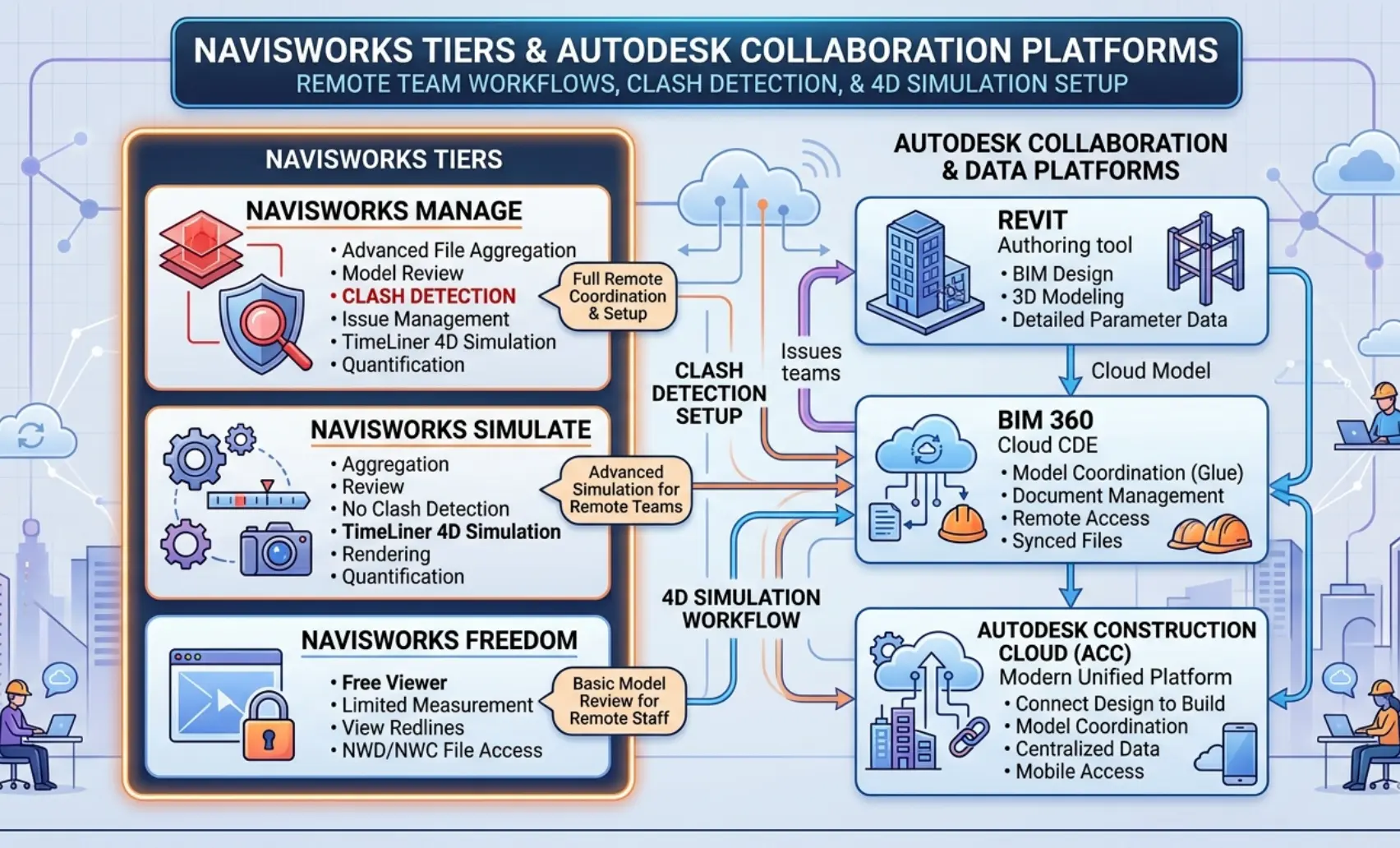
Where Navisworks Fits Next to Revit, ACC, and BIM 360
Navisworks sits downstream of authoring tools and upstream of field execution.
| Platform | Role |
| Revit | Discipline-specific model authoring exports NWC files |
| Navisworks Manage | Coordination hub – clash detection, 4D simulation, issue tracking |
| Autodesk Construction Cloud / BIM 360 | Cloud hosting, model publishing, issue management, and team access |
| Autodesk Docs | Document distribution, markup sharing, and report storage |
| Navisworks Freedom | Free viewer for stakeholders who need to review but not edit |
Manage vs Simulate vs Freedom
- Navisworks Manage: Full coordination platform. Includes Clash Detective, TimeLiner, search sets, selection sets, and issue tracking. This is what your VDC manager and coordination leads need.
- Navisworks Simulate: Includes TimeLiner for 4D simulation but excludes Clash Detective. Useful for construction sequencing review without full clash capability.
- Navisworks Freedom: Free viewer. Opens NWD files. No editing, no clash tests, no simulation. Distribute to clients and contractors who need to review coordination models without a paid seat.
Mismatched licenses across a remote team create workflow gaps. Confirm every coordination lead has Navisworks Manage before building your clash workflow.
Build a Federated Model the Remote Team Can Trust
A federated model is only as reliable as its weakest input. Before running a single clash test, every discipline file must be clean, current, and correctly aligned.
Append Trade Models From Revit, IFC, Civil 3D, and Other Sources
Start with a master NWF file, not NWD. The NWF format stores references to source files without embedding geometry. When a discipline team publishes an updated NWC, the NWF reflects it on the next open. The NWD is a snapshot; use it for distribution, not coordination.
Append models in this order:
- Architectural: Base reference – all other disciplines coordinate against this
- Structural: Append second – establishes primary conflict geometry
- MEP: Append the last-highest clash frequency against structural and architectural
- Civil 3D / site: Append for projects with significant sitework or below-grade coordination
Export NWC files directly from Revit using the Navisworks exporter plugin. For IFC and DWG sources, validate units and coordinate system before appending; a misaligned model produces thousands of false clash results instantly.
Check Alignment Before Testing Anything
Coordinate system misalignment is the single most common cause of a failed coordination session.
Run this alignment check before any clash test:
- Confirm all models share the same project base point or survey point origin
- Verify units match across all appended files; metric vs imperial mismatches are invisible until clash results make no geometric sense
- Use Navisworks section cuts at known grid intersections to visually confirm model overlap
- Check floor-to-floor heights match across structural and architectural models
One misaligned model contaminates every clash test in the session. Fix alignment first, always.
Create Saved Views, Selection Sets, and Search Sets by Trade and Level
Selection sets and search sets are what separate a usable coordination model from a chaotic one, especially for remote teams where multiple people run tests independently.
- Selection sets: Manually grouped geometry. Use for fixed groupings – a specific equipment room, a plant level, a riser shaft.
- Search sets: Rule-based selections driven by model properties. Use for dynamic groupings, all objects where Category = Mechanical, or all elements on Level 3.
Build a standard set of libraries at project kickoff:
| Set Name | Type | Scope |
| STR_All | Search set | All structural elements |
| MEP_HVAC_L3 | Search set | HVAC elements on Level 3 |
| MEP_Plumbing | Search set | All plumbing objects |
| ARCH_Ceilings | Selection set | Ceiling geometry by zone |
Save views at key coordination areas, plant rooms, riser shafts, and ceiling voids. So remote team members navigate directly to conflict zones without hunting through the full model.
Setting Up Clash Detection in Navisworks: Step-by-Step
This is the core of Navisworks ‘ Manage Clash Detective workflow for remote teams. Follow this sequence on every project, no shortcuts.
Step 1: Import and Append Models
- Open Navisworks Manage and create a new NWF master file
- Append discipline models using Home → Append
- Supported formats: NWC, NWD, RVT (via direct link), IFC, DWG, DGN
- Clean models before import – purge unused families from Revit, remove non-coordination geometry, and confirm NWC export settings exclude temporary elements
Best practice for remote teams: Store all source NWC files in a shared Autodesk Construction Cloud or BIM 360 coordination space. Every team member appends from the same cloud path, never from a local drive.
Step 2: Organize Selection Sets
Group model elements by discipline and system before configuring any clash test.
- Create search sets for each trade: structural, architectural, HVAC, plumbing, electrical, fire protection
- Add level-based subdivisions for multi-story projects – MEP_HVAC_L1, MEP_HVAC_L2, and so on
- Apply consistent naming conventions across the project team
Naming convention standard for remote teams: [Discipline]_[System]_[Level] Example: MEP_Sprinkler_L4, STR_Columns_All, ARCH_Walls_L2
Enforce this naming standard in your project execution plan. When a remote engineering assistant runs tests independently, consistent set names eliminate ambiguity and prevent duplicate or mis-scoped tests.
Step 3: Configure Clash Tests
Open Clash Detective and create tests systematically, not ad hoc.
Clash types to configure:
- Hard clash: For physical geometry intersection, the most critical type
- Clearance clash: For a defined buffer zone violation, essential for MEP maintenance access
- Duplicate clash: For identical geometry from multiple model sources, common in federated IFC imports
Tolerance settings:
- Set hard clash tolerance to 0 mm for structural vs MEP tests; any intersection is a real conflict
- Set clearance clash tolerance to 50–150 mm for MEP maintenance zones, depending on system criticality
- Use 5–10 mm tolerance for tight MEP-to-MEP coordination in congested ceiling voids
Configure one test per discipline pair; never run an all-vs-all test on a full federated model, as all-vs-all yields tens of thousands of results, burying critical conflicts in noise.
Step 4: Run and Review Clashes
Run each test and sort results immediately:
- By status: New → Active → Reviewed → Approved
- By severity: Group hard clashes above clearance clashes in review priority
- By location: Use a grid reference or a level to assign geographic ownership
Assign a viewpoint to every clash result before the review meeting. Remote team members need one click to navigate to the conflict, not a coordinate hunt.
A widely-cited set of Stanford CIFE figures claims up to 40% reduction in unbudgeted changes and up to 10% contract-value savings from clash detection/coordination.
Step 5: Assign and Track Issues Remotely
Issue tracking is where clash detection converts into accountable action.
- Assign each active clash to the responsible discipline lead, not the coordinator
- Use Navisworks viewpoints with embedded comments as the issue record
- Push issues to the BIM 360 or Autodesk Construction Cloud issue tracker for cross-platform visibility
- Set resolution deadlines aligned to the weekly coordination rhythm
Best Practices for Clash Detection in Remote Teams
Structure is what makes remote BIM coordination with Navisworks repeatable, not just possible.
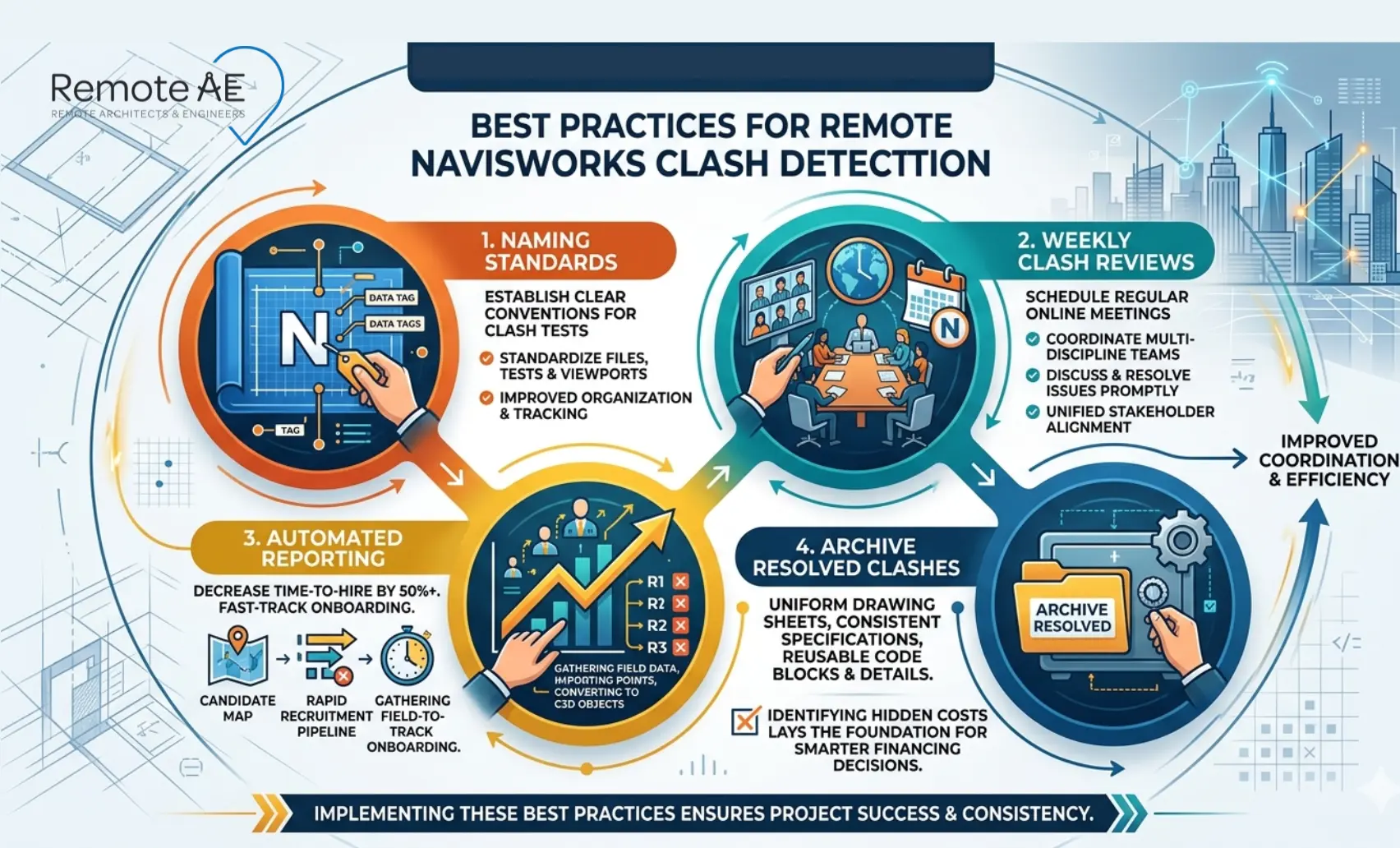
- Standardize naming across all teams: One naming convention in the project execution plan. No exceptions. Inconsistent set names break automated test runs and create confusion in multi-time-zone handoffs.
- Run weekly clash review meetings virtually: A 60-minute weekly session with all discipline leads. Review new clashes, confirm resolutions, and update status before the next model publish cycle.
- Prioritize critical systems first: Structural vs MEP hard clashes before architectural vs MEP clearance clashes. Sequence reviews by construction impact, not by volume.
- Automate clash reports: Schedule Clash Detective HTML or XML reports to export after each test run. Distribute via Autodesk Docs automatically, no manual report packaging.
- Archive resolved clashes: Keep a full clash history in the project register. Resolved clashes that resurface after design changes are the most expensive coordination failures.
In Measuring the Impact of BIM on Complex Buildings (Dodge Data & Analytics/SmartMarket), respondents who could quantify RFI impact often reported more than 10% RFI reduction on BIM-enabled complex projects.
Set Up 4D Simulation in TimeLiner
Navisworks TimeLiner connects your construction schedule to your federated model, turning a static coordination file into a dynamic sequencing tool. For remote teams, 4D simulation is the fastest way to catch sequencing conflicts before they become site problems.
Import Tasks From Your Schedule Source
TimeLiner accepts schedule data from multiple sources:
- Microsoft Project (.mpp): Direct import via the TimeLiner data source connector
- Primavera P6 (.xml): Import via XML export from P6
- CSV: Manual schedule import, useful when the project scheduler works on a different platform
Steps to import:
- Open TimeLiner → Data Sources tab → Add
- Select your schedule format and map the file path
- Confirm that task names, start dates, and end dates import correctly before proceeding
- Rebuild the data source after every schedule update. TimeLiner does not auto-sync
Auto-Add Tasks and Auto-Attach Model Objects
Manual task-to-model attachment works for small projects. For anything with 200+ tasks, use automation.
Auto-add tasks:
- TimeLiner → Tasks tab → Auto-Add Tasks
- Navisworks generates tasks from model object properties, WBS codes, phase parameters, or level data embedded in Revit families
- Review auto-generated tasks before attaching, remove duplicates, and consolidate minor tasks into work packages
Auto-attach objects:
- Use Rules tab → Add Rule to map task names to search sets or model object properties
- Example rule: Tasks containing “Level 3 MEP” auto-attach to the MEP_All_L3 search set
- Run Simulate after attaching to verify correct objects animate with each task
Run Planned vs Actual Simulations
4D simulation delivers two distinct value outputs for remote teams:
Planned simulation:
- Animates the construction sequence as scheduled
- Identifies sequencing conflicts, equipment delivered before crane access is established, and MEP rough-in scheduled before structural steel is complete
- Share as an NWD export or screen recording with the project team for schedule validation
Planned vs actual simulation:
- Add actual start and finish dates to TimeLiner tasks as construction progresses
- Run a split simulation showing planned sequence in one color, actual progress in another
- Instantly visible to remote stakeholders, no schedule software access required
Color coding standard for remote clarity:
- Green: Planned and on schedule
- Red: Behind planned sequence
- Yellow: In progress
- Grey: Not yet started
Use Time-Based Clash Checks to Catch Sequencing Problems
Clash Detective and TimeLiner integrate directly, enabling time-based clash testing.
- In Clash Detective → create a new test → set Type to Hard → enable TimeLiner link
- Set the simulation time range to cover critical construction phases
- Run the test, Navisworks flags objects that physically conflict at the same point in the construction sequence, not just geometrically
This capability is one of the most underused features in Navisworks Manage, and one of the highest-value outputs a remote engineering assistant can deliver with the right workflow setup.
Run a Remote Coordination Process That People Actually Follow
A technically perfect Navisworks setup fails if the coordination process isn’t structured for how distributed teams actually work.
Suggested Weekly Rhythm for Distributed Teams
| Day | Activity | Owner |
| Monday | Discipline teams publish updated NWC files to BIM 360 / ACC | Discipline BIM leads |
| Tuesday | Remote engineering assistant updates NWF, runs clash tests, and updates the register | Remote Assistant |
| Wednesday | VDC manager reviews the clash register and assigns new issues | VDC manager |
| Thursday | Discipline leads review assigned clashes, submit resolutions or queries | Discipline leads |
| Friday | Weekly coordination meeting, 60 min, all leads, review status, confirm next publish | VDC manager chairs |
What the BIM Lead Owns vs What a Remote Assistant Owns
Clarity of ownership eliminates the most common remote coordination failure: tasks that everyone assumes someone else is handling.
VDC manager / BIM lead owns:
- Federated model architecture decisions
- Clash test configuration and tolerance settings
- Issue assignment to discipline leads
- Coordination meeting facilitation and escalation
The remote engineering assistant owns:
- Weekly NWC collection and NWF update
- Clash test execution and report generation
- Clash register maintenance and status tracking
- TimeLiner task updates and simulation exports
- Autodesk Docs report distribution
How to Keep Issue Tracking Clean Across Time Zones
Dirty issue tracking data is the coordination equivalent of a messy drawing register; it erodes trust and slows every review.
- Every issue must have: a title, discipline owner, due date, and linked viewpoint, no exceptions
- Status updates are mandatory before the weekly meeting; no verbal-only updates
- Resolved issues get a resolution note and a date stamp, never just closed without documentation
- Use BIM 360 or Autodesk Construction Cloud issue tracker as the single source of truth, not email threads or spreadsheets running parallel to the model
Rule: If it’s not in the issue tracker, it doesn’t exist. Enforce this from week one.
How Remote AE Supports Navisworks Workflows
Remote AE places dedicated virtual construction assistants trained in production-ready Navisworks workflows. So your coordination process runs without gaps, regardless of where your team sits.
Dedicated Virtual Construction Assistants
Every Remote AE assistant arrives fluent in the tools and workflows your coordination depends on.
Services delivered remotely:
- Clash detection setup: Building search sets, configuring Clash Detective tests, running weekly clash cycles, and maintaining the clash register
- Weekly coordination reports: Clash status summaries, resolution tracking, and issue tracking updates distributed via Autodesk Docs before every coordination meeting
- 4D simulation creation: TimeLiner task import, model object attachment, planned vs actual simulation exports, and time-based clash checks
- Federated model management: Weekly NWC collection, NWF updates, and model audit before each coordination session
- BIM 360 / Autodesk Construction Cloud administration: Folder management, permissions, and coordination space maintenance
Your VDC manager focuses on decisions. Our remote engineering assistant handles the weekly production workflow that consumes coordination hours.
Experience and Cost Efficiency
Remote AE brings over 15 years of experience supporting BIM coordination workflows for AEC firms globally, across infrastructure, commercial, healthcare, and residential project types.
The financial case is straightforward:
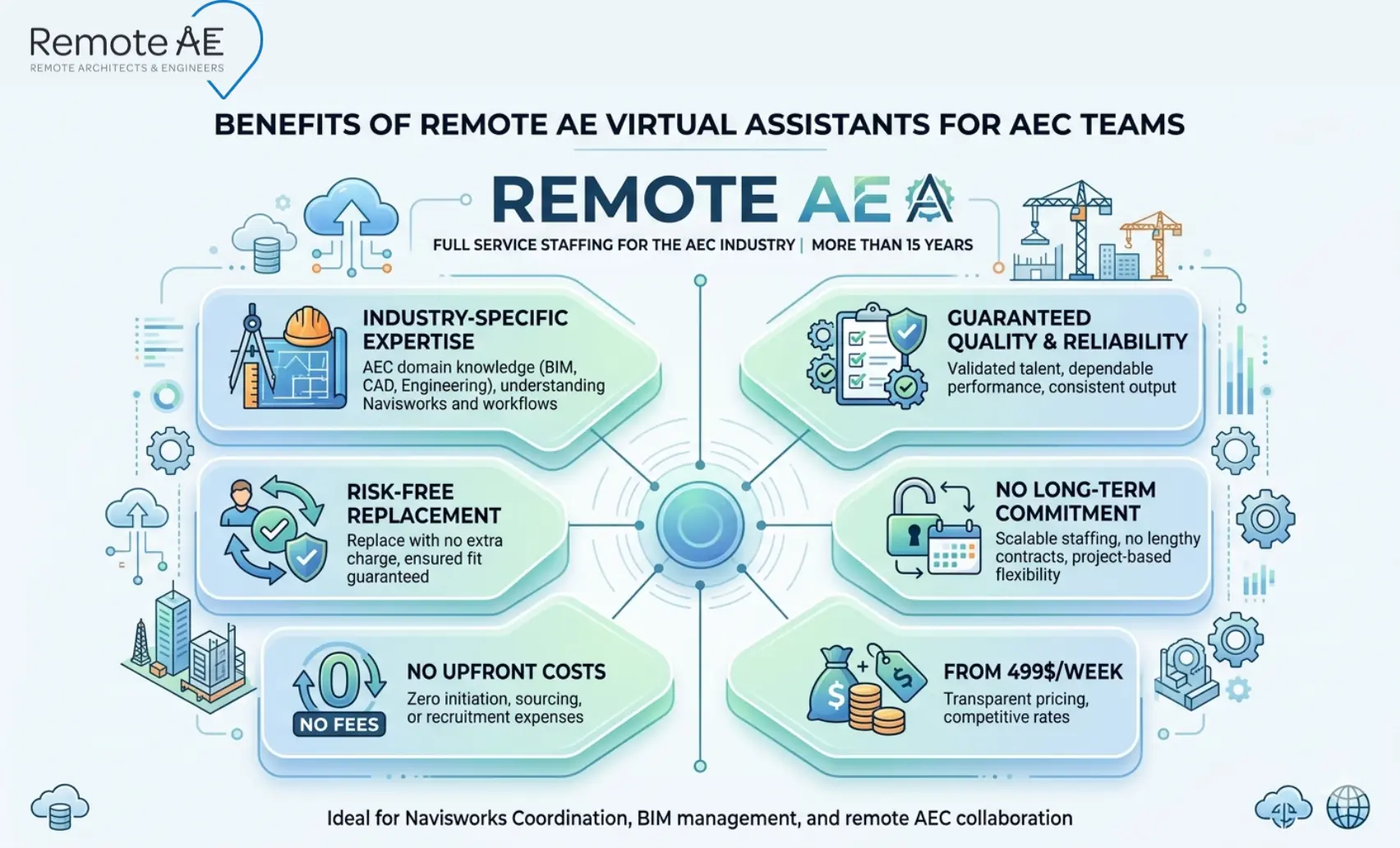
- Save 30–50% on staffing costs compared to equivalent in-house VDC or coordination hires
- Industry-specific expertise, no tool training required, no onboarding lag on Clash Detective or TimeLiner workflows
- Guaranteed quality and reliability, deliverables meet your coordination standards, or the issue gets resolved immediately
- No long-term commitment, engage on a project basis or as an ongoing coordination resource
- Staffing from $499/week
- No upfront costs: Consult with the Remote AE team without any initial financial burden. There is no cost or obligation until the contractual phase begins. Evaluate fit before you commit.
- Risk-free replacement: In the first year, Remote AE offers risk-free replacements for up to two virtual assistants. If a placement doesn’t meet your coordination standards, it gets resolved without disrupting your active project.
Build a Navisworks Coordination Workflow That Actually Scales!
Your projects are too complex for ad hoc coordination. Your team is too stretched to run weekly clash cycles manually on top of everything else. Remote AE brings pre-vetted virtual construction assistants, trained in Autodesk Navisworks, Clash Detective, TimeLiner, BIM 360, and Autodesk Construction Cloud, ready to own your weekly coordination workflow from day one.
Stop letting coordination gaps turn into field conflicts.
Book a Free Consultation with Remote AE Today, no obligation, no pressure. Just a direct conversation about what your Navisworks coordination workflow needs right now.
FAQs – Navisworks for Remote Teams
Can Navisworks Simulate run clash detection?
No. Clash detection is only available in Navisworks Manage. Simulate can review models and run TimeLiner simulations, but it cannot create or manage clash tests. Teams doing coordination must use Manage for clash workflows.
Which file should remote teams share: NWC, NWF, or NWD?
- NWC → cached export from source models (lightweight, not shared alone)
- NWF → coordination file with links to models (best for active team workflows)
- NWD → published, locked snapshot (best for sharing with stakeholders)
Remote teams usually work in NWF and share NWD for review.
How do you link a schedule to model elements in TimeLiner?
Import a schedule (from Excel or scheduling tools), then map tasks to model objects using selection sets or search sets. Once linked, TimeLiner can simulate construction sequencing and generate 4D visuals based on task dates and model elements.
Can remote stakeholders view a 4D simulation without a full Navisworks license?
Yes. You can export an NWD file and share it with stakeholders using the free Navisworks Freedom viewer. This allows them to view models and 4D simulations without needing a paid license.
Why do clashes or objects disappear after reopening a Navisworks file?
This usually happens because the NWF file only references linked models. If file paths change or models are moved, Navisworks cannot reload them. Broken links or missing NWC files will cause objects or clashes to disappear. Keeping a stable folder structure prevents this.